
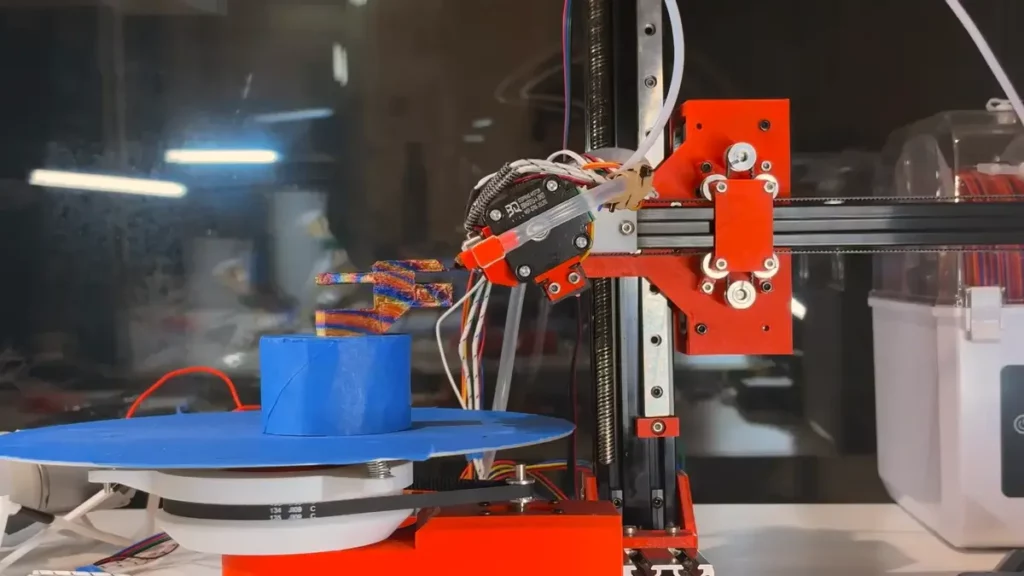
Maybe you are looking for a 3D printer and you want to make the most out of it. In this article you will find several tips to improve 3D prints quality through correct settings and other advices from experts on the matter. Each 3D prints slicer has a different set of features and you need to learn about them to use them for the better.
A 3D printer works by creating layers one on top of the other until you have a 3D reproduction of the object you want. A slicer is a kind of software developed to translate the 3D model into 3D printer instructions. That way you can have your 3D prints quality improved by selecting the correct slicer for each model. Thanks to a slicer your 3D printer will understand the model as independent and separated horizontal layers.
Set your slicer to improve 3D prints quality
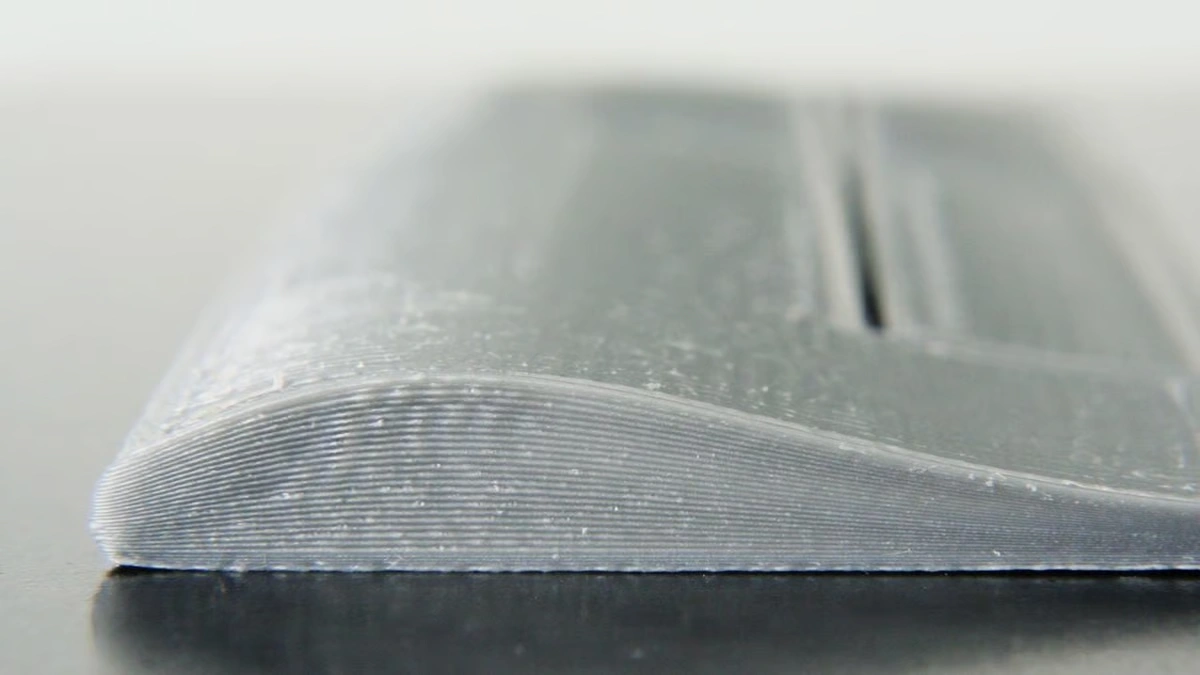
Making the most out of your slicer you can tweak with different settings such as filling density, material quantity or layer’s height among others. Every 3D print requires these features to be correctly set in order to improve the final result.
In the 3D printers market you will find several slicers, some of them are for free and others include subscription methods. In terms of features, all of them have something to say. Among the free options, PrusaSlicer is one of the most complete, and it has compatible versions with Windows, macOS and Linux devices.
How to improve your 3D prints quality easily
Know that you already know what slicers are for you should start trying the different features they offer. These tips will help you to improve the 3D prints quality in little time.
Print test pieces
Try and make several test pieces with little variations to understand how your slicer and 3D printer works. Test pieces can help you to understand how subtle changes modify your final result. You can print specific sections every time to see the results and then select the best of them all.
Use bridging
The best way to print some designs that you can see at screen is using the bridging technique. Extend the support geometry to anchor them and then displace the segments vertically. It’s a good technique to optimize directions and you should learn to use it along the low density mesh infill for movable pieces in hollow zones.
Create lattices
Instead of using hole patterns for your object, you can overlap a mesh geometry in your slicer to create lattices. It’s a more visually appealing format that just a simple hole full zone.
Modify the design
After creating your piece you may want to do a last minute change. However, you don’t need to open the project on the app, you can add new elements directly from the slicer. It works to add or remove certain changes on each piece.
Finally, the last tip to improve your 3D prints quality is having patience. You have to try and learn all about your printer and the software in order to get the best results. Don’t give up if the first object you print is lacking quality.
Do you have any questions or problems related to the topic of the article? We want to help you.
Leave a comment with your problem or question. We read and respond to all comments, although sometimes it may take a while due to the volume we receive. Additionally, if your question inspires the writing of an article, we will notify you by email when we publish it.
*We moderate comments to avoid spam.
Thank you for enrich our community with your participation!