

For content teams and network managers, the challenge isn’t just trimming a video, but processing multiple recordings at once, producing versions tailored to each network, and getting everything ready for publication without wasting time. Converting a long video into batches of clips can be an operational task that consumes hours if done manually.
To facilitate this task, we have AI Video Cut, a free online tool that uses artificial intelligence algorithms to identify phrases, detect faces, and propose cuts with user-defined criteria.
The template option allows batch processes to be launched with pre-set parameters, while the custom mode accepts text that precisely describes what to extract from each file.
Automatic transcription facilitates reviewing and editing subtitles, and the ability to export in various formats ensures that clips fit the dimensions required by each channel.

All this without the need to install anything, with access through accounts (Google or Facebook) and with a limit of up to 50 minutes per video in the free version. For more extensive material, there are payment plans that increase this capacity.

AI Video Cut options that adapt long videos to batch clips
To set up a batch workflow, it’s a good idea to first understand the tool’s options.
Templates are used to define consistent criteria: for example, extracting the best fragments from several webinars with the same subtitle style and target duration.
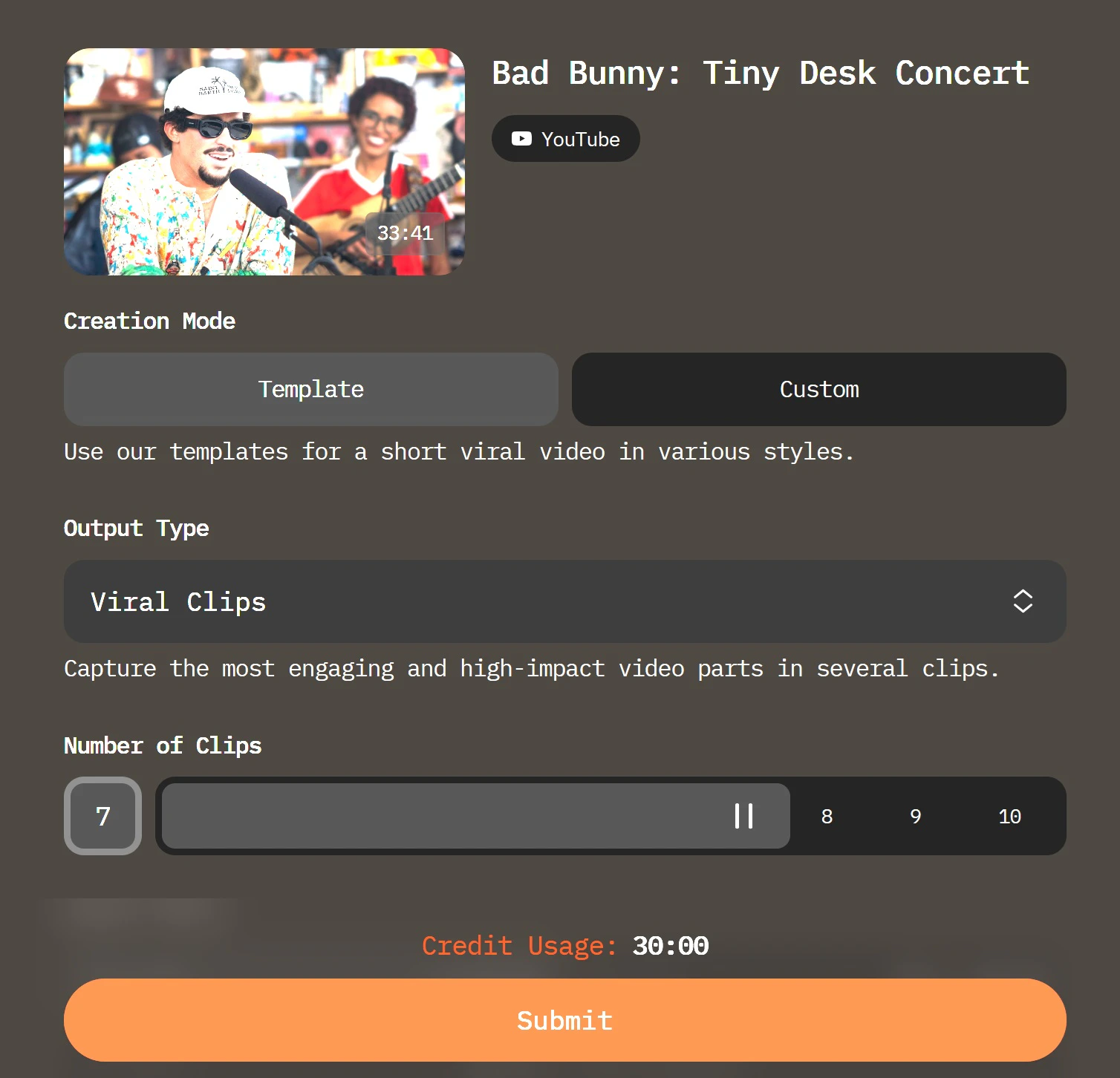
Custom mode allows you to apply a different cut script to each source if you need more control. In both cases, you can select the number of clips per video and adjust the length—7, 15, or 25 sentences—to adapt it to the target channel.
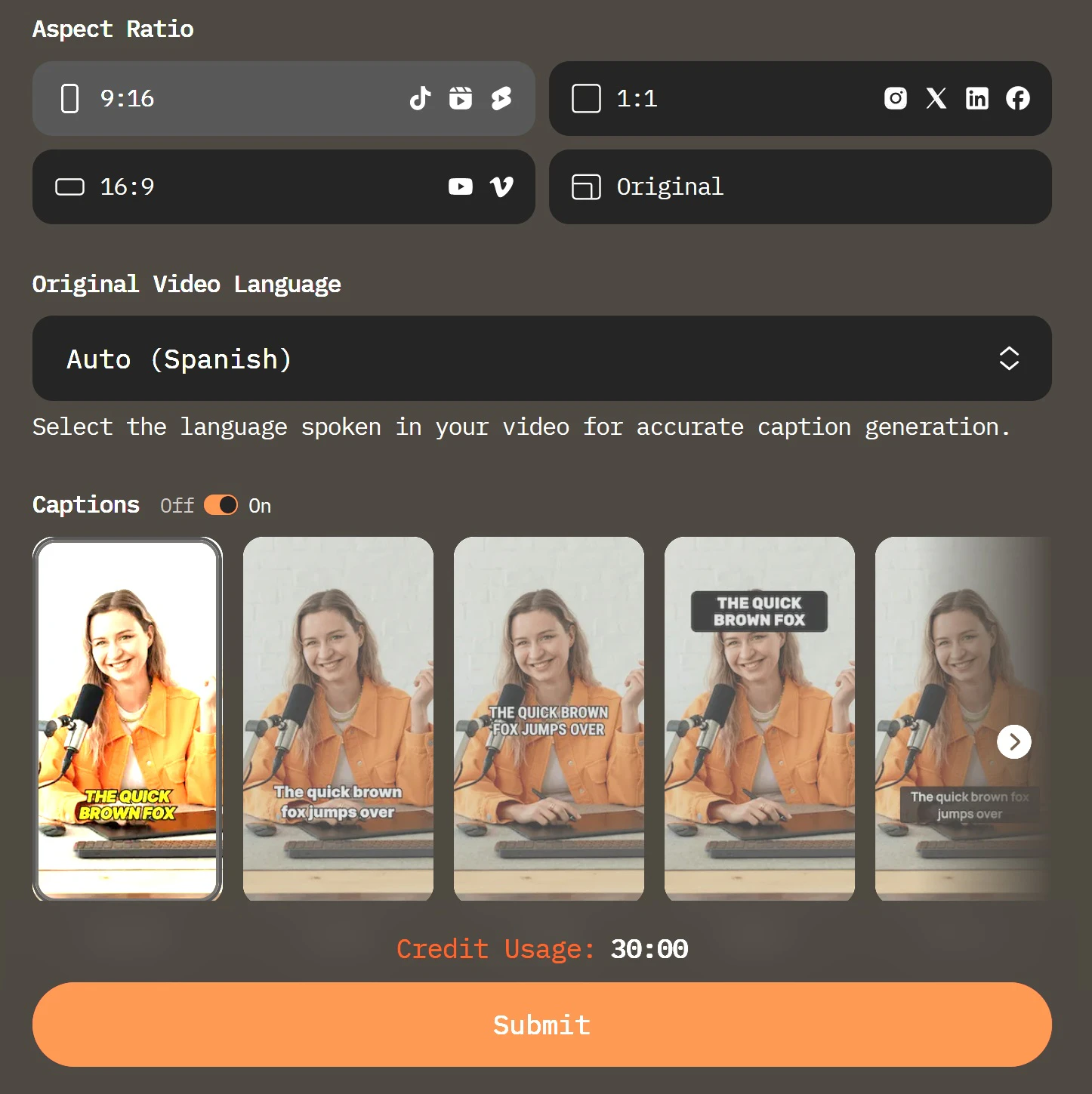
The choice of aspect ratio is crucial when scheduling publications: 9:16 is the natural choice for vertical content in mobile apps, 1:1 works well for feeds, and 16:9 is appropriate if you plan to distribute on services that support horizontal format.
Speaker detection helps maintain the frame on the central person in each clip, avoiding distracting cuts for the audience. Additionally, editing the transcript allows you to remove silences or repetitions before exporting, which improves the readability of subtitles on screen.
Finally, the inclusion of a logo and the preview option ensure that the files you download arrive ready for programming.
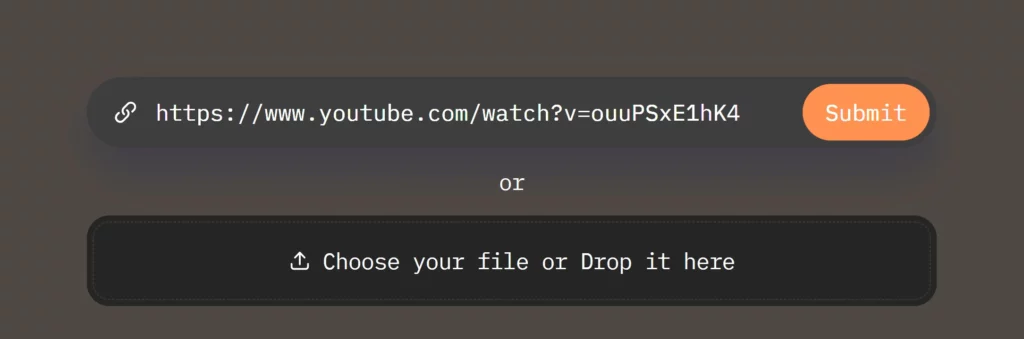
Go to the AI Video Cut web and log in to your account. Take the long video, either from your computer, your mobile device, or by pasting public links (YouTube).
If you want to process multiple files with the same approach, use the Template option. Select a template that best matches the desired result—for example, “testimonials” or “highlights”—and adjust the number of clips per file, sentence length, and subtitle style.

Now, decide the aspect ratio: vertical for stories and Shorts, square for wall posts, or horizontal for repositories and post-editing.
Custom mode for special cases
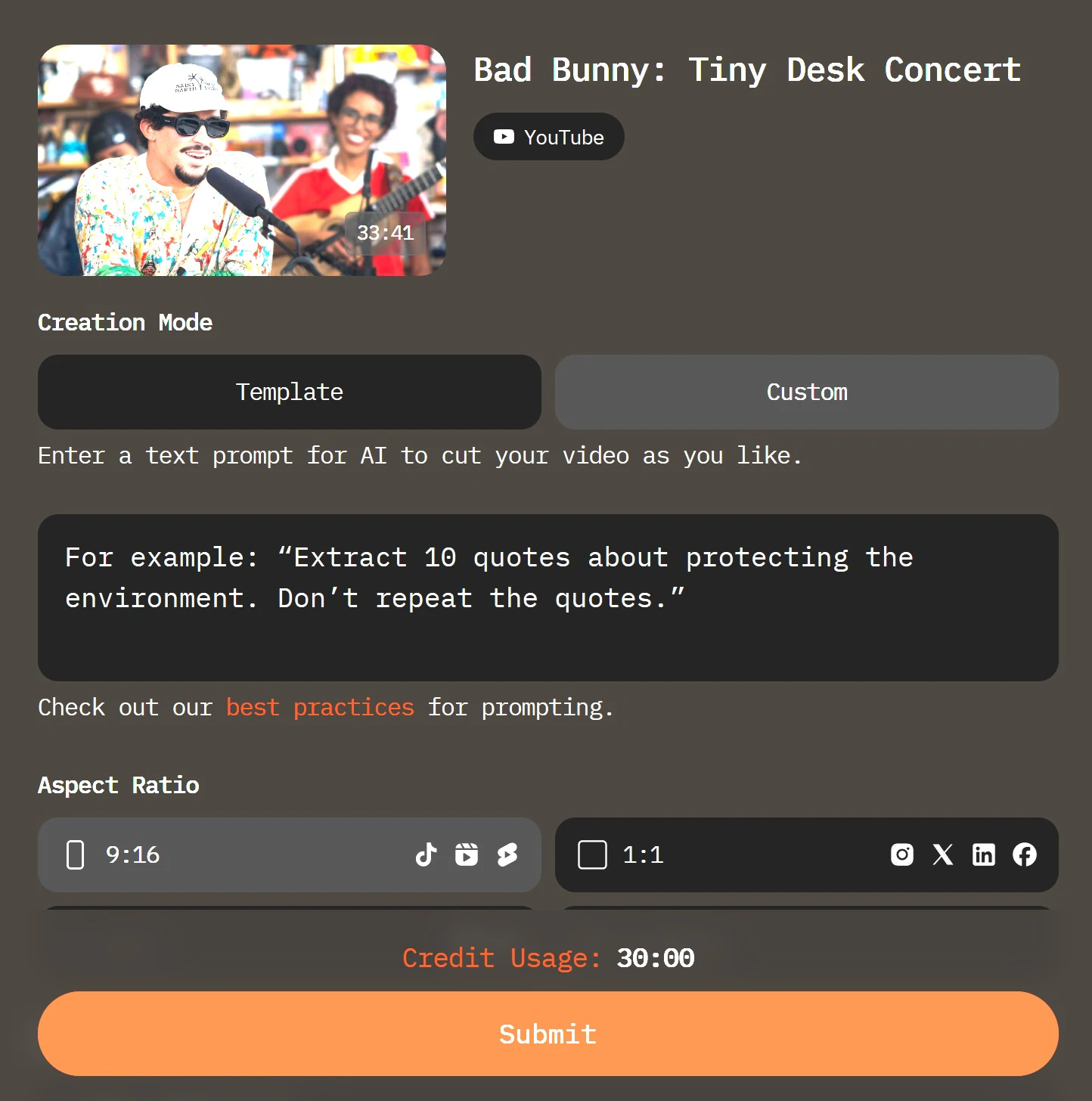
If a file requires additional criteria, activate Custom and write the specific instruction the AI should follow (for example: “extract five fragments with sentences containing practical advice; avoid repetitions”). You can apply Custom mode to specific videos within the same batch to achieve variety without losing overall consistency.
Before processing, check the automatic language detection and correct keywords in the transcript where necessary. This improves the accuracy of the subtitles embedded in the clips; a thorough editing of the transcript prevents errors and makes it easier to ensure clear messages when viewed silently.
Now you can launch the process and review the previews the tool provides. If you detect any framing errors or an unfortunate cut, apply adjustments and reprocess only that element.
Once finished, you can download the files and upload them to your usual publishing manager (YouTube, Facebook, TikTok, Instagram, or whatever).
Schedule times and A/B variations (different subtitles or thumbnails) to measure performance. If you prefer to automate further, you can coordinate notifications from the AI Video Cut Telegram bot to your team for review and approval before publishing.
Do you have any questions or problems related to the topic of the article? We want to help you.
Leave a comment with your problem or question. We read and respond to all comments, although sometimes it may take a while due to the volume we receive. Additionally, if your question inspires the writing of an article, we will notify you by email when we publish it.
*We moderate comments to avoid spam.
Thank you for enrich our community with your participation!