
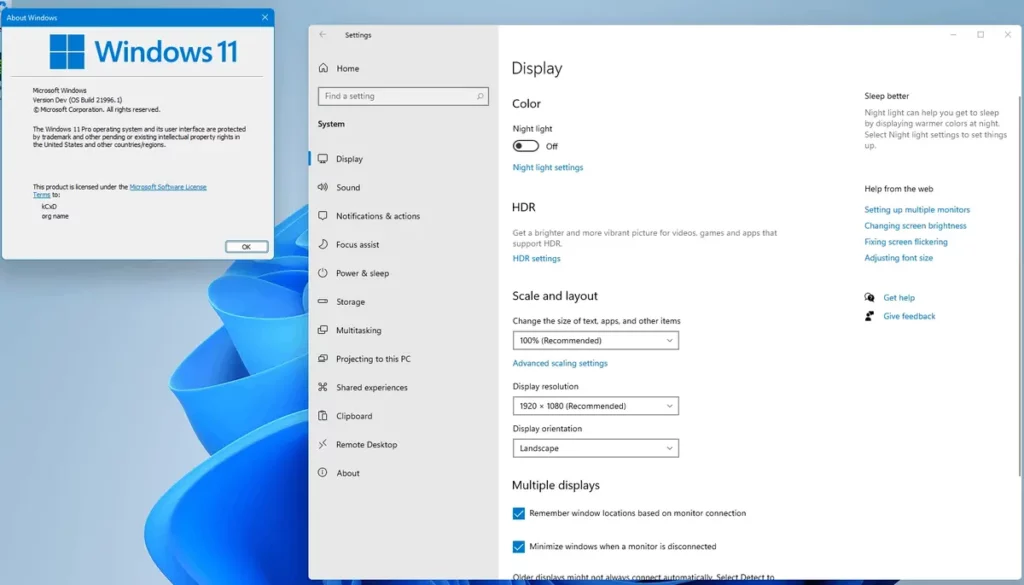
A lot of users dislike Windows 11 interface and they try to avoid updating to the newest Microsoft operating system. However, there are different alternatives to keep using Windows 10 interface but using 11’s core. There are apps like Start11 or Windhawk, but you can also get the old interface from the Settings menú.
In terms of customization Windows has reduced the options since Windows 95. But there’s an alternative to include visual aspects from older Windows in your updated system. In this article you can learn how to.
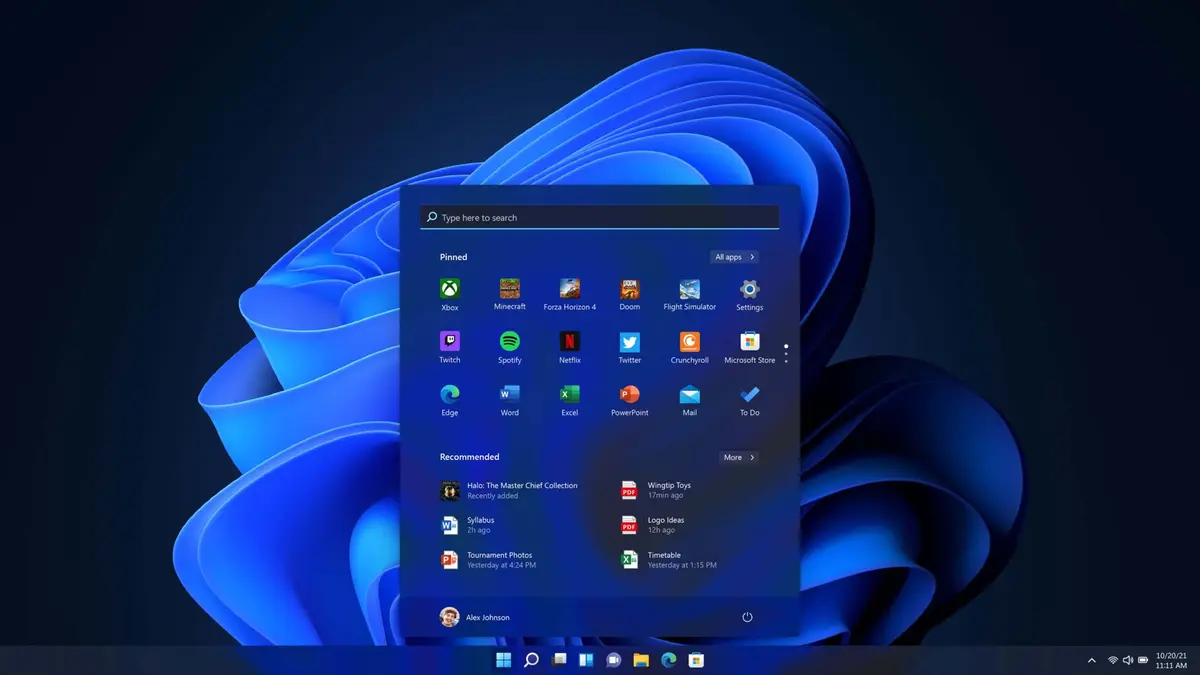
Windows 10 interface in 11, move the Start menu
One of the biggest changes in Windows 11 interface is the Start Menu location. It now appears centered at the bottom of the screen. However, in Windows 10 you could find it on the left corner. You can customize Windows 11 interface with certain 10 details like moving the Start menu to the bottom left corner.
- Open the Settings menu.
- Click on the lateral Customization menu and press on Tool bar.
- In Tool bar behavior select the left corner location.
- Expand apps in the Task bar
Window users are used to lose and recover features from a version to another. For example, the possibility of expanding task bar app and not only see Chrome, Word or Steam apps is missing in Windows 11. In order to recover this visual feature you need to do the following:
- Open the Settings menu.
- Look for the Task bar tool in the lateral Customization area.
- Check the Never box next to the “Combine buttons on the task bar and hide labels” option.
Once you activate this setting, all the apps will be seen on a Task bar design similar to Windows 10 interface. There you will be able to see all your apps independently.
Show the scroll bar all the time
Windows 11 update scroll bar is hidden by default. This can be very bothersome. Luckily, there’s a customization setting you can enable to recover the scroll bar presence.
- Go to Settings.
- Select Accessibility in the lateral menu.
- Inside Visual Effects turn on the switch for “Always show scroll bars”.
Use the classical File Explorer in Windows
Another difference between Windows 10 and 11 interface is the File Explorer and contextual menu absence in the new Microsoft experience.
- In order to recover this tool you need to open Windows search bar and write Windows tools.
- Press on Home or This PC and change the menu for the classical interface for the File Explorer. This will also make the contextual menu return.
The problem with this configuration is that you won’t have it always available. After opening a new window for the File Explorer, the setting will return to default. However, you can set this tool to the Task bar in order to access the configuration faster.
Do you have any questions or problems related to the topic of the article? We want to help you.
Leave a comment with your problem or question. We read and respond to all comments, although sometimes it may take a while due to the volume we receive. Additionally, if your question inspires the writing of an article, we will notify you by email when we publish it.
*We moderate comments to avoid spam.
Thank you for enrich our community with your participation!