
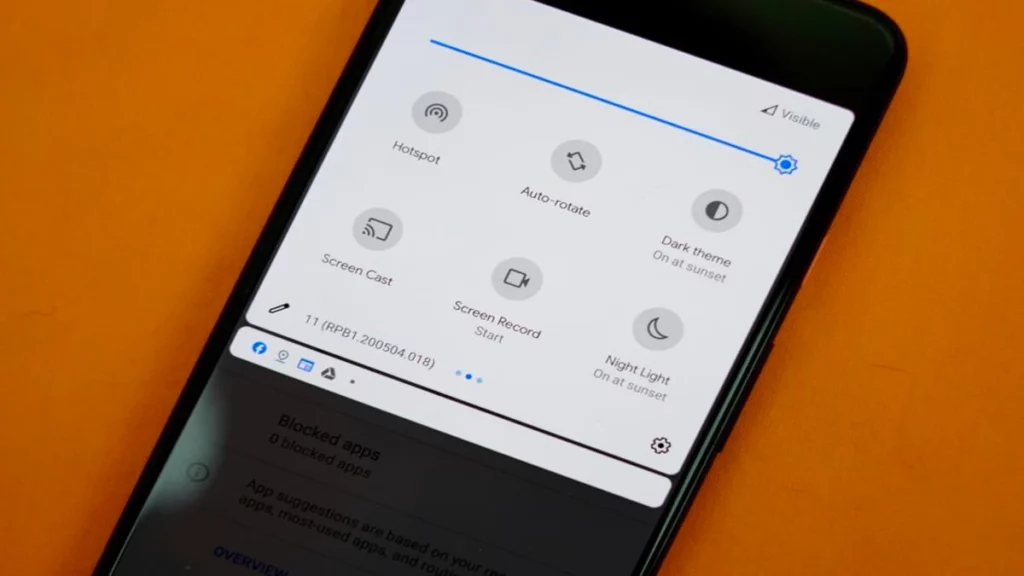
In the past you needed root access in order to record your screen in Android devices. However, nowadays it’s a regular action you can easily perform. Users record their Android screen for several reasons ranging from showing a gameplay to post content on social networks or create tutorials for settings.
If the idea to record your screen in Android proved to be challenging in the past, now it’s only a matter of certain permits and the function it’s available for anyone. It’s possible that you don’t know that you Android could do it, but in this article you will find 4 easy methods to do so.

How to record your screen in Android
The first method is Google’s native one. It’s the universal way for any Android 11 or higher device. You will find the integrated screen recorder directly on the shortcut menu of your phone.
In order to enable it you have to slide two times the quick settings panel and search the Record screen icon. If you don’t find it on the first page, press the Edit button and drag the function to your active icons. The pop up menu will allow you to select audio source and the touches you make on the screen to appear or not. This is the quickest and cleanest way as well as the most basic one. You can’t control any other parameters of the video like resolution or bitrate.
Manufacturer’s native method
Before Google decided to include the record screen feature in Android 11, several Smartphones brands already had this function available. It was normally present on their customization layer and there was no need to install any third party app. For example Samsung One UI, Xiaomi HyperOS or Huawei EMUI already included a Record screen feature.
Depending on your brand you may need to combine a physical button shortcut or there may be a dedicated icon. It works similarly to Android official button. However, manufacturer’s native record screen tends to be more powerful.
Gaming variant
This variant may be hidden in your Android phone under the Game Launcher or gaming space depending on your device. Samsung, Oppo and Realme, for example, include it.
By adding certain games to this folder, you will see a floating panel when you open the title. There you can select optimized recording features for your Android screen. In this case, the quality of the recording is better. You can capture gameplay at 60 FPS as well as avoid showing notifications or sensitive alerts during your gameplay. Certain manufacturers include this feature as the native one but the recording button is only a shortcut.
Pro recording method for your Android screen
If native options are not what you are looking for, you can download one of several third party apps from the Play Store. In the past these were the only apps to record your screen in Android, but they are still the most powerful option available.
AZ Screen Recorder and Mobizen are two of the most popular apps to make a recording of your Android screen. The most important advantage is that you can control absolutely every detail of the recording from resolution to bitrate, FPS and little edition actions. A lot of this apps include the floating button for quick access, as well as broadcasting features to play the video on YouTube or Twitch.
Limitations
Recording your screen may prove useful, but there are certain limitations to take into account. Look out for privacy. System restrictions avoid to record internal audio from calls or videocalls. Also, DRM protected content apps such as Netflix or bank apps will actively block the recording. If you record these apps you will only see a black screen video.
The record screen feature in Android saves your videos on the Gallery. You can open it from Gallery or Google Photos depending on your customization options. There will also be a notification immediately after recording a video.