
Windows 11 is a capable operating system, but it ships with a handful of default settings that most users would rather not have. Changing those Windows 11 settings takes only a few minutes and makes a noticeable difference in speed, privacy, and day-to-day comfort. The good news is that you can reach almost all of them through the Settings app, which opens instantly with the shortcut Win + I.
Before anything else, it helps to understand why these tweaks matter. Microsoft designs Windows 11 to work for the widest possible audience, which means some features are switched on by default even when they get in the way for most people. A few minutes of configuration now saves a lot of frustration later.
Clean Up the Start Menu and Taskbar
The Start menu is the first thing you see every day, and Windows 11 fills it with recommendations for recently opened files and suggested apps. Head to Personalization > Start in Settings and turn off “Show recommendations.” The result is a cleaner menu that shows only the apps you actually pinned there.
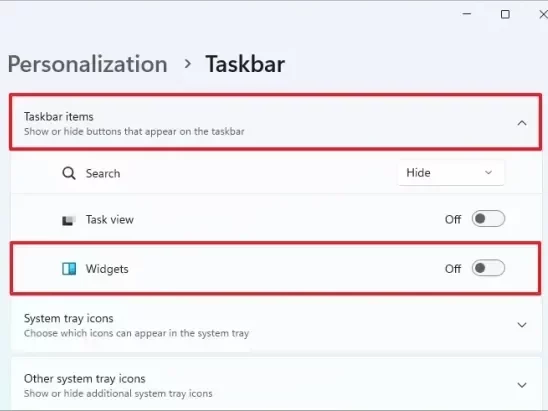
The Taskbar deserves attention too. Windows 11 places a Widgets icon that pulls in weather, sports scores, and news headlines. Many users find it distracting. You can remove it from Personalization > Taskbar by toggling Widgets off. If you ever want the feed back, the shortcut Win + W still works.
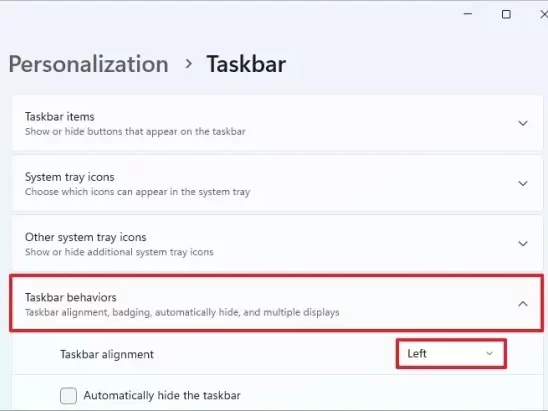
While you are in the Taskbar settings, consider moving the icon alignment back to the left. Microsoft changed the Start menu in Windows 11 to center the icons by default, which feels unfamiliar to anyone coming from earlier versions of Windows.
Disable Ads and Tracking in Windows 11 Settings
Windows 11 assigns each user an advertising ID that installed apps use to serve targeted ads. It also collects optional diagnostic data, including the websites you visit and things you do on your device, and that collection is on by default. To switch it off, go to Privacy & Security > Diagnostics & Feedback and turn off “Send optional diagnostic data.” While there, set “Tailored experiences” to Off as well.
For the advertising ID, navigate to Privacy & Security > General and disable the relevant toggles. Turning them off will not eliminate ads entirely, but they will become generic rather than targeted to your browsing habits.
There is one more place worth checking. Inside System > Notifications, scroll to the bottom and uncheck “Get tips and suggestions when I use Windows.” These pop-ups are well-intentioned but add noise once you know your way around.
Speed Up the System: Startup Apps and File Extensions
One of the fastest wins in Windows 11 is trimming the list of apps that launch at startup. Open Task Manager, click the “Startup apps” tab, and disable anything you do not need running from the moment the PC boots. Fewer startup programs means a faster login and a snappier desktop from the first second.
Another setting that is off by default but genuinely useful is showing file extensions in File Explorer. Go to View > Show and enable “File name extensions.” Seeing whether a file is a .pdf, .exe, or .docx at a glance helps you avoid accidentally opening the wrong thing, and it is a small but real security benefit.
Clipboard history is also worth activating. Press Win + V to open it, and Windows will prompt you to turn the feature on. From that point forward, you can paste any of the last items you copied, not just the most recent one.
Game Mode, Dark Mode, and a Few More Quick Wins
If you play games on your PC, enable Game Mode under Settings > Gaming > Game Mode. According to Microsoft Support, Game Mode prioritizes game processes and limits background activity, which can help deliver more stable frame rates. On lower-end systems or machines running several background apps, the difference can be meaningful.
Dark mode is another change worth making early. Windows 11 ships in Light mode by default, which is hard on the eyes in low-light conditions. Switch to Dark mode in Personalization > Colors and many built-in apps will follow suit automatically. Laptop users get a small battery benefit as a bonus on OLED screens.
Finally, spend a moment with the Snap Layouts feature. Hover over the maximize button of any window and a small grid appears, letting you arrange windows side by side without dragging. It is one of the more underrated additions in Windows 11 and takes about three seconds to learn.
Do you have any questions or problems related to the topic of the article? We want to help you.
Leave a comment with your problem or question. We read and respond to all comments, although sometimes it may take a while due to the volume we receive. Additionally, if your question inspires the writing of an article, we will notify you by email when we publish it.
*We moderate comments to avoid spam.
Thank you for enrich our community with your participation!