
Data loss can happen to anyone at any time. Whether you accidentally deleted important files, formatted a drive, or faced a system crash, the fear of losing precious data is real. Luckily, you don’t need to spend a fortune on professional recovery services or complicated software.
Today, we’ll share you guys with a top freeware data recovery tool in 2025: MyRecover. Everything about this freeware, including what it brings to you, how it works, and why it’s perfect for beginners and professionals alike wil be introduced in the following sections.
What Makes MyRecover Stand Out?
Among the many freeware data recovery tools available, MyRecover shines as one of the best, combining simplicity, powerful features, and a high success rate. Check out more details to make a wise decision when it comes to recovering your precious files.
1. High Recovery Success Rate
MyRecover uses an advanced scanning algorithm that combines “quick scan and deep scan” modes to locate lost files efficiently and accurately.
2. Cover Almost Data Loss Situations
It recovers data from various loss scenarios like accidental deletion, formatting, system crashes, power failure, virus attacks, and more.
3. Supports Over 1000+ File Types
Whether your documents, photos, videos, emails, or archives, MyRecover can recover it. This broad compatibility ensures you don’t miss any important files.
4. Works on Multiple Storage Devices
MyRecover supports data recovery from SSDs, HDDs, USB drives, SD cards, and other external devices including cameras, game consoles and more.
5. User-Friendly Interface
Designed for all users, MyRecover offers a simplethree-step recovery proces: “Select the drive”, “Scan lost files” and “Recover”. No technical skills are required, making it perfect for beginners.
6. Compatible with Latest Windows Versions
MyRecover supports NTFS, FAT32, exFAT, and ReFS drives on Windows 11, 10, 8.1, 8, 7, and Windows Server versions, making it widely applicable regardless of your system.
How to Use MyRecover to Recover Your Lost Files
Getting started with MyRecover is quick and easy. Here’s a brief overview for your reference based on the situation where you need to recover video from SD card (tip: when you delete files from removable disk like SD card, memory card, USB flash drive, etc, they won’t go to Windows Recycle Bin and are permanently deleted).
- Visit the official MyRecover website and download the free edition. Remember to install it on a different drive than the one you want to recover data from, to avoid overwriting.
- Launch the program and choose the drive or partition where files were lost. Click “Scan”. For recently deleted data, MyRecover will automatically perform a “quick scan” in seconds. If you are trying to recover data from corrupted or formatted partition, it will start a “deep scan”, which takes a longer time but finds more files.
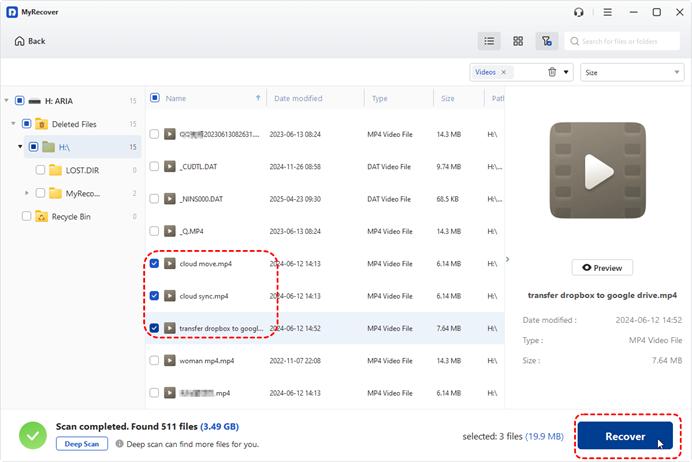
- Once scanning completes, browse all recoverable files and select the files you want to recover. For a quicker process, you can use the Filter or Search function to screen out specific files. Click “Recover”.

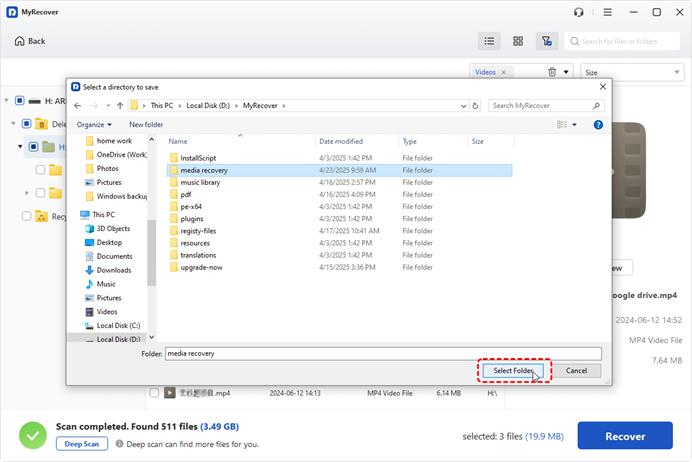
Then, you need to choose a location to save the recovered files. Please select a different one than the original drive to avoid data overwriting. Besides, you need to consider whether the destination drive has enough free space to hold what you will recover, specially the data size is quite huge.
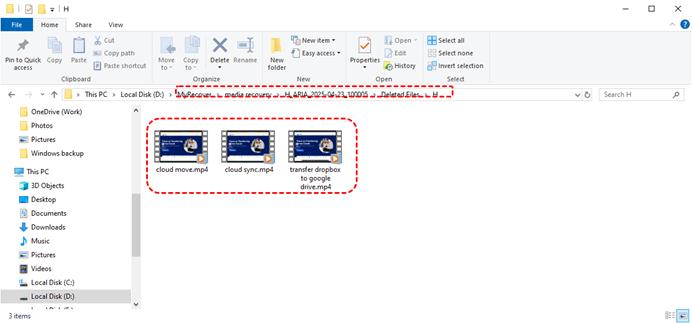
After the recovery has finished, a mini window will pop out, displaying how many files have been restored successfully, along with the new path.

To check out the recovered files, you can click the new path or the “Browse” button to directly access them. Then you can double click each one to verify whether they are intact.
Conclusion
So, when it comes to searching for and choosing freeware data recovery tools nowadays, MyRecover is worth your consideration, not only for its its high success rate, ease of use, but also for its comprehensive features. Morecover, with the simple and intuitive interface, you can easily select the target drive and recover necessary files from it within a few clicks. If necessary, you can also try its Professional or Technician version to unlock more adavnced functions such as: create bootable rescue media, recover files from unbootable Windows, unlimited data recovery quota. If you are a casual user and just want to recover a small amount of data, the free edition is quite enough.