
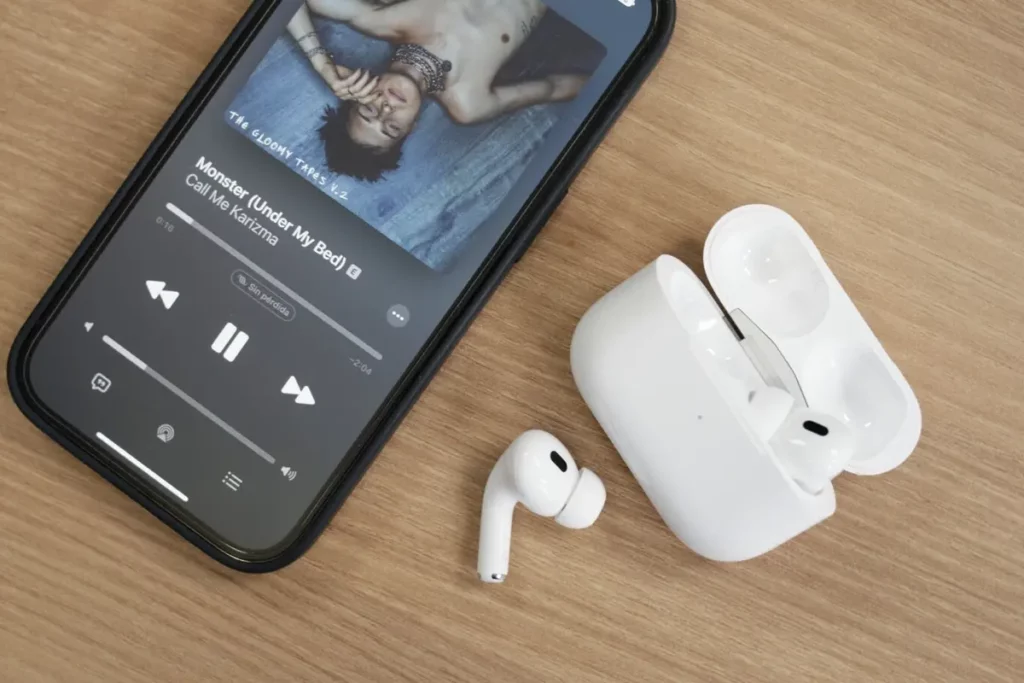
If you are one of those persons that enjoy company when listening to music, watching series or movie, there’s a trick for the iPhone you should employ. You can hear directly from your iPhone through two different pairs of AirPods. The feature is available on Apple devices that range from the iPhone to the Apple TV sets.
Although it’s not a feature visible at first glance, it’s not that hard to execute. The best of it is that almost any Apple device can perform it. The only requirement is to have Bluetooth 5.0 standard or higher. Almost every AirPods model is right but not every iPhone or Apple device includes the Bluetooth compatibility.
The AirPods you need to listen music from an iPhone
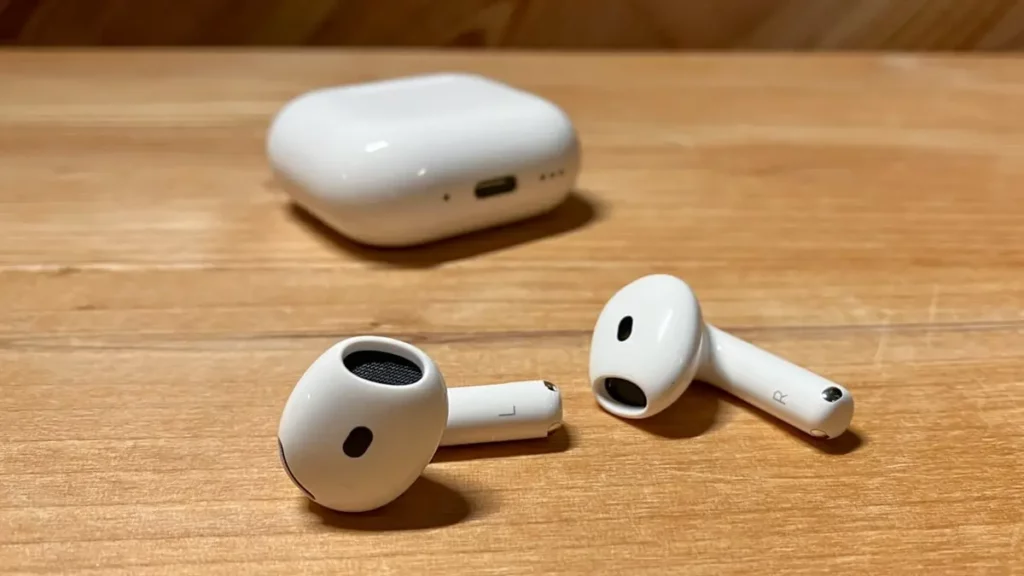
The available AirPods you can use include every model from the AirPods 2 up to the AirPods Pro 2 and including the Max and Max USB-C models. There’s also a list of iPhone devices that you can synch to listen music in two pairs of AirPods at once. Any iPhone model from the iPhone 8 onwards is compatible.
If you want to hear in two AirPods from and iPad, there are several models you can use. The complete list includes:
- iPad 10th generation (2022) onwards.
- iPad Mini 5th generation (2019) onwards.
- iPad Air 3rd generation (2019) onwards.
- iPad Pro 11” 1st generation (2018) onwards.
- iPad Pro 12,9” 3rd generation (2018) onwards.
The Mac models can also be set to listen from two AirPods at once. The complete list of compatible Mac devices include:
- MacBook Air 13” (2020) onwards.
- MacBook Air 15” (2023) onwards.
- MacBook Pro 13” (2018) onwards.
- MacBook Pro 14” (2021) onwards.
MacBook Pro 15” (2018) onwards. - MacBook Pro 16” (2019) onwards.
- iMac 24” (2021) onwards.
- iMac 27” (2020) onwards.
- iMac Pro (2017)
- Mac mini /2018) onwards.
- Mac Studio (2022) onwards.
- Mac Pro (2019) onwards.
Finally, if you want to listen with two AirPods from an Apple TV device, you need the Apple TV 4K 2nd generation (2021) or higher. Those are all the devices compatible with this sound feature.
Steps to listen from your iPhone or Apple device in two AirPods
It doesn’t matter which device you are using. The steps to activate the feature are the following:
- Put on your AirPods and connected them to the device target.
- Open Control Center.
- Select AirPlay button in your device.
- Choose the option Share audio.
- Open the case of the other AirPods and hold the button.
- Select Share audio when the icon appears on screen.
The audio synch of both AirPods should be perfect after doing this. You should listen exactly the same from both AirPods. On the other hand, each AirPod stills allows for you to select volume regulation and noise cancellation individually.
Do you have any questions or problems related to the topic of the article? We want to help you.
Leave a comment with your problem or question. We read and respond to all comments, although sometimes it may take a while due to the volume we receive. Additionally, if your question inspires the writing of an article, we will notify you by email when we publish it.
*We moderate comments to avoid spam.
Thank you for enrich our community with your participation!