
Sometimes when you download a file with Google the speed is astonishingly slow. Even if you have a good Internet connection, the download takes too much time. This may be caused by Google Chrome settings that use only one connection to download files.
However, there’s an alternative to increase Google download speed that you can easily set up. Google’s web browser doesn’t inform you about it, but you can divide the files into several parts and then download them simultaneously. This allows downloading smaller files with an interesting boost in Google download speed. In this article you will learn how to configure your PC for a faster download. But take into account that this feature will consume more processing power from your device.

Increase Google Chrome download speed easily
If you want to activate the speed configuration for Chrome you must follow these steps:
- Write
chrome://flagsin the search bar. - Press Enter.
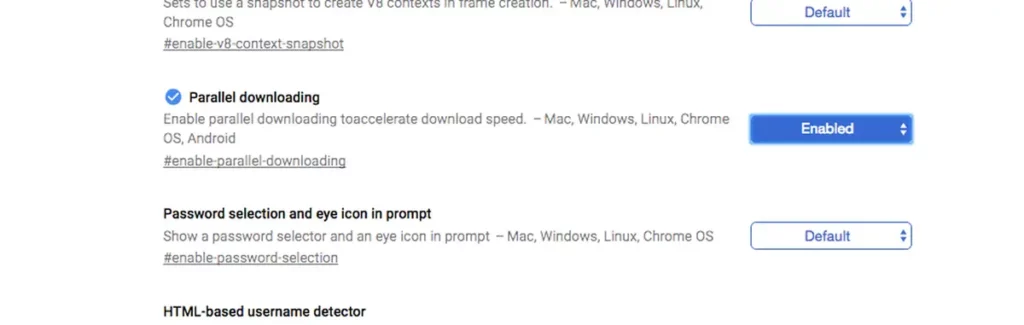
- In the new search bar write Parallel downloading.
- Select the option Enabled in the slider menu.
- Restart your web browser.
Once the option is enabled, each time you start a new download Chrome will try to divide the bigger files intro several packages. Those files which origin server is compatible, will allow for parallel download for a faster experience.
Parallel downloading considerations
When the parallel downloading option is enabled, Chrome needs more resources in order to activate several connections at the same time. If you experience a slower performance you should disable the feature.
Not every server allows parallel downloading. If the server is not compatible, you will experience the same download speed from a normal download.
If you are looking for a more detailed solution, you can try a download manager. Two of the most popular ones include JDownloader or Internet Download Manager. Both are designed to increase download speed to the maximum through deep techniques that include parallel downloading. When you have a good PC, the download performance should easily increase.