
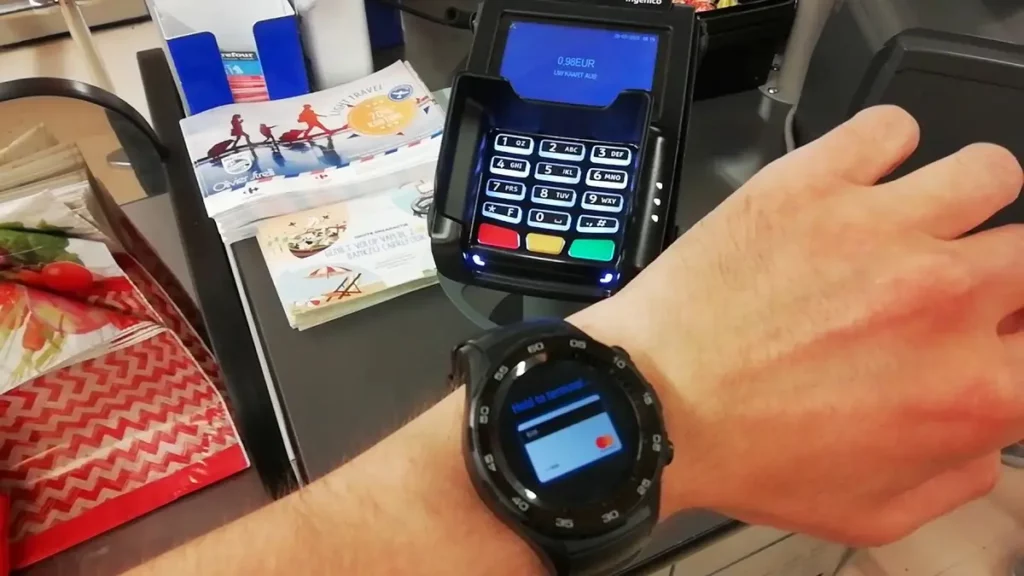
Huawei smart watch devices now include the possibility of making NFC payments. You can set your watch to work as a credit or debit card in just a few steps. Thanks to the collaboration with Quicko Wallet, you can use your money through NFC connection.
In this article you will learn how to set your Huawei smart watch to make NFC payments. It’s an easy process you can set in just a few minutes. It includes different steps but very simple to follow.

Which Huawei smart watch is compatible with NFC payments?
At the moment Huawei NFC payments are done through Quick Wallet app. It’s a virtual wallet that allows to recharge money and use it to pay from the watch. It’s only available in two devices but Huawei is working to include more smart watches soon. The Huawei Watch Fit 4 and 4 Pro are already compatible and Huawei Watch 5 is coming up.
Huawei Watch Fit 4 compatibility is 100% with the 5.1.0.109 (SP1C00M00) firmware version installed. You need to synch your watch with and Android phone or through Huawei Mobile Services system. In iPhone devices, the Quicko Wallet installation comes with a firmware update by the end of June.
What is Quicko Wallet?
In order to make NFC payments with a Huawei smart watch you need to use Quicko Wallet app. It’s an app for mobile payments that works as a virtual prepaid card, similar to N26 or Revolut. The main difference with Quicko Wallet is that the apps centers on security and comfort. You won’t need a physical card and you can recharge it from an European bank account or using compatible credit and debit cards. The app doesn’t have any hidden cost and you only need to register, create a virtual card and transfer money using the IBAN number. It’s totally free.
In case you make a recharge from a card, you will have to pay a small processing fee. It’s a very low fee of just a few cents per 100 hundred Euros. Credit card information is not shared during payment reducing significantly fraud risks. The system also blocks the payment option if you remove the watch from your wrist and the reactivation requires your personal PIN.
How to use Quicko Wallet with your Huawei Watch
In case you already have a compatible Huawei and you want to start paying with NFC technology from your wrist, here are the steps you need to follow. Set Quicko Wallet and start paying.
- Download and install Quicko Wallet in your Smartphone
- Go to your app store and download Quicko Wallet.
- Install it.
- Register with your e-mail account.
- Check your inbox and verify your Quicko Wallet account.
- Create your virtual card using your personal information. You need to introduce address, work and other data.
The process is guided and intuitive but you may experience problems with the activation e-mail. Register yourself until you can get it.
Add a credit card or recharge funds
Once you have the virtual card active you can transfer money using the IBAN number. It’s a free process that takes 24 to 48 hours. If you want an instant transfer you need to use a Visa or Mastercard card to add funds. This method includes a small fee. For example, for charging 50 Euros you have to pay 30 cents.
- Install Quicko Wallet on your Huawei clock
- Make sure that your smart watch is synched with the phone using Huawei Health app.
- Open AppGallery inside Huawei Health and download Quicko Wallet on the watch.
- Set the four number security PIN.
- Make Quicko Wallet your default payments app from the watch settings.
- Set a function for the physical button of the watch.
- Synch Quicko Wallet with the watch from the mobile pp and wait for the cards to appear.
Do you have any questions or problems related to the topic of the article? We want to help you.
Leave a comment with your problem or question. We read and respond to all comments, although sometimes it may take a while due to the volume we receive. Additionally, if your question inspires the writing of an article, we will notify you by email when we publish it.
*We moderate comments to avoid spam.
Thank you for enrich our community with your participation!