
Maybe it’s time to update to Windows 11. The hard drive compatibility issues when updating to Windows 11 come from the format hard drives are usually given. In Windows 10 the traditional Master Boot Record (MBR) is still present. But Windows 11 requires GUID Partition Tablet hard drives (GPT). In this article we explain how to solve the format problem quickly.
Before changing your hard drive format you must comply with all the starting requirements from Microsoft. The alternatives to change hard drive format for Windows 11 are secure and extremely reliable. Both EaseUS and AOMEI are third party solutions but you can also try with the System symbol settings in Windows.
Turn MBR to GPT and solve hard drive compatibility in Windows 11 without risks
The risk of losing files when changing hard drive format from MBR to GPT is real. That’s why you should use trustworthy apps and tools. For example, EaseUS Partition Master, MBR2GPT or AOMEI Partition Assistant. Each of these have a different method to change formats and you must follow the steps provided here.
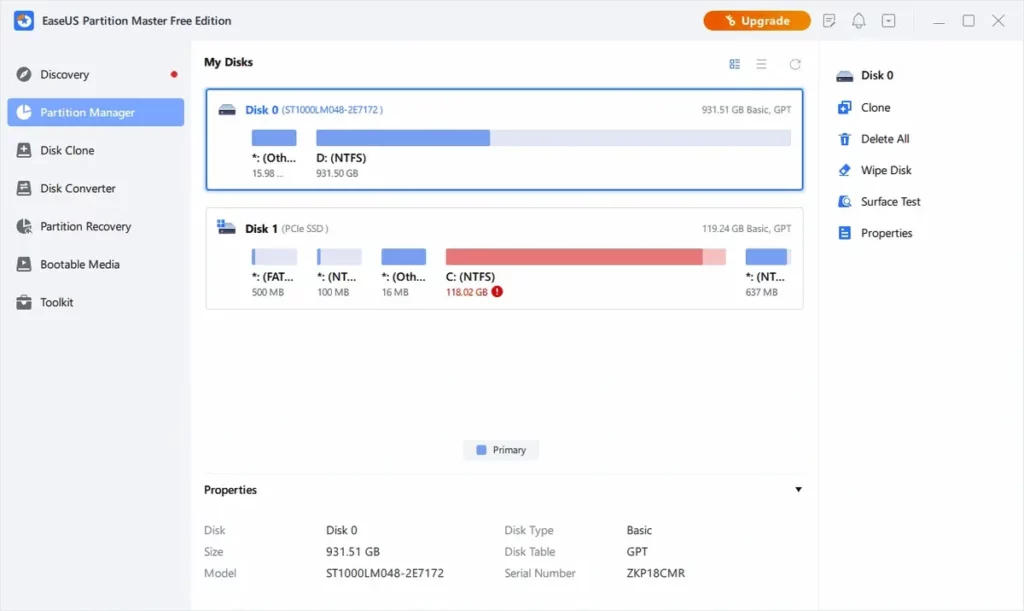
EaseUS Partition Master option
This free tool allows you to convert MBR to GPT without eliminating any partition at all. You can download it directly from the EaseUS website and open the app to start the process.
- Open EaseUS and choose the hard drive from the main menu.
- Right click on your unit and choose Turn to GPT.
- Complete the manual settings for your new partition and wait for the process to end.
MBR2GPT using the command line
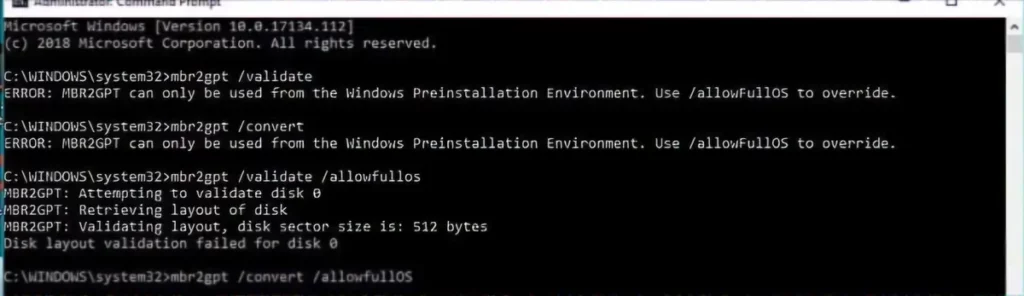
This is a command you have to activate from the CMD. You won’t need to install any other file. Make sure you have the UEFI mode enabled on your BIOS and that your hard drive doesn’t have more than 2 partitions. Once you meet the requirements do the following:
- Open the System symbol as Administrator and execute:
-
mbr2gpt /convert /disk:0 /allowFullOS - Wait for the process to end and restart your PC.
AOMEI Partition Assistant features

The AOMEI software solution includes a free and a paid version. You can solve hard drive compatibility problems in Windows 11 update with the free version so follow these steps:
- Downlaod AOMEI Partition Assistant to your computer.
- Execute the program and select the disk you want to change format.
- Press Turn to GPT and wait for the process to end.
Do you have any questions or problems related to the topic of the article? We want to help you.
Leave a comment with your problem or question. We read and respond to all comments, although sometimes it may take a while due to the volume we receive. Additionally, if your question inspires the writing of an article, we will notify you by email when we publish it.
*We moderate comments to avoid spam.
Thank you for enrich our community with your participation!