
The flash is a very useful tool for your photos but it comes in handy in certain moments. Using the Android phone flashlight you can search for stuff on a dark cabinet or even when walking at night around the house. Every Smartphone user knows how to open the flashlight in Android, but there are different ways that may save your time.
In this article we explore the 5 easiest ways to use the Android flashlight and make the most out of it. You may already know the classic way but there are other useful techniques to quickly open the flashlight tool.

Quick settings Android flashlight turn on
The most common way to open Android flashlight is using the Quick settings menu. Although it’s not a bad option, it’s the second fastest way to open the flashlight tool. You just need to swipe down the screen to access Quick settings. From there, select the flashlight icon and you’re done.
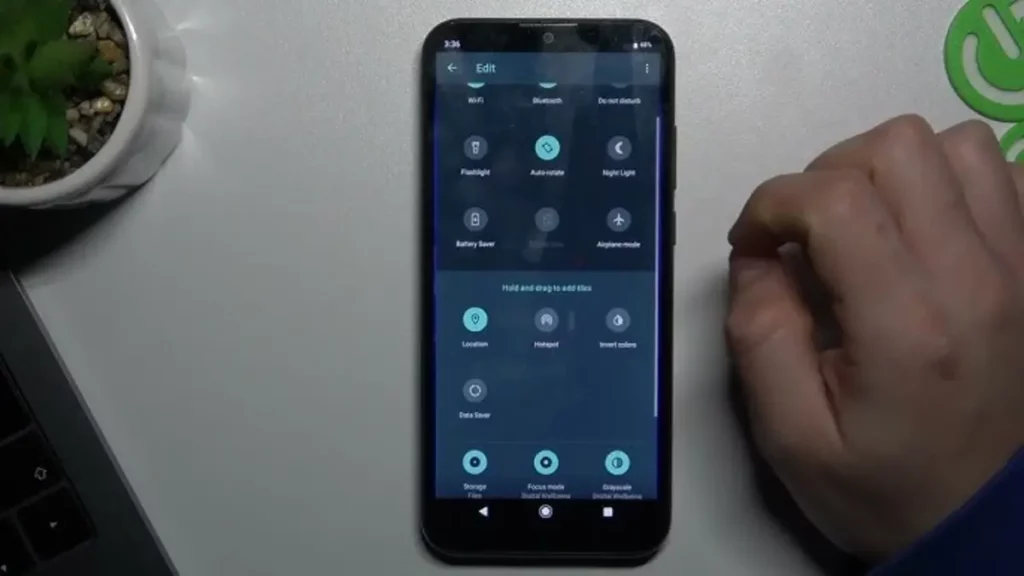
The flashlight Quick settings icon is present by default in almost every Android phone but you may not find it. In that case, press the pencil icon in the bottom right corner and drag the flashlight icon to one of the first spots.
Using Google Assistant
This is the most comfortable and easiest way to open the Android flashlight but it’s not the fastest. You won’t need to find any button. Just give Google Assistant the order to turn on the flashlight and wait for it.
From the block screen
Depending on the model of your Android phone this may be the fastest way to open the flashlight app. From Google Pixel Android 14 for example, you can customize your block screen to include a flashlight button. In order to do so, you only need to do the following:
- Open Background screen and style.
- Screen and tactile settings.
- Block screen.
- Shortcuts.
Choose the flashlight button and any other option you may want to include in your block screen.
Fast touch Android flashlight
Fast touch in Android has been present and absent depending on the operating system version. But from Android 13 onwards there are different alternatives to customize fast touch app opening. It’s one of the fastest methods to open the flashlight tool. The downside is that depending on your phone cover it may not be as subtle as it should.
You first need to set fast touch behavior from the System – Gestures menu. Select Fast touch to start actions and indicate Turn on or off your flashlight as the designated action.
Using Google Pixel At a glance feature
The At a glance widget in Google Pixel allows to show additional information on your block and home screen. You can customize it to include a flashlight button to quickly open the flashlight app whenever you need it. It’s easy and very fast and you can activate it from the Home screen settings menu enabling At a glance widget and then customizing it.
Bonus method: third party apps
Besides the Android methods to turn on your flashlight, there are also third party apps to open your flashlight app using other techniques. For example, you can download Action Blocks and customize your physical buttons, or Torchie to use volume up and down buttons. There are also apps to include the shaking option for opening your flashlight app.