
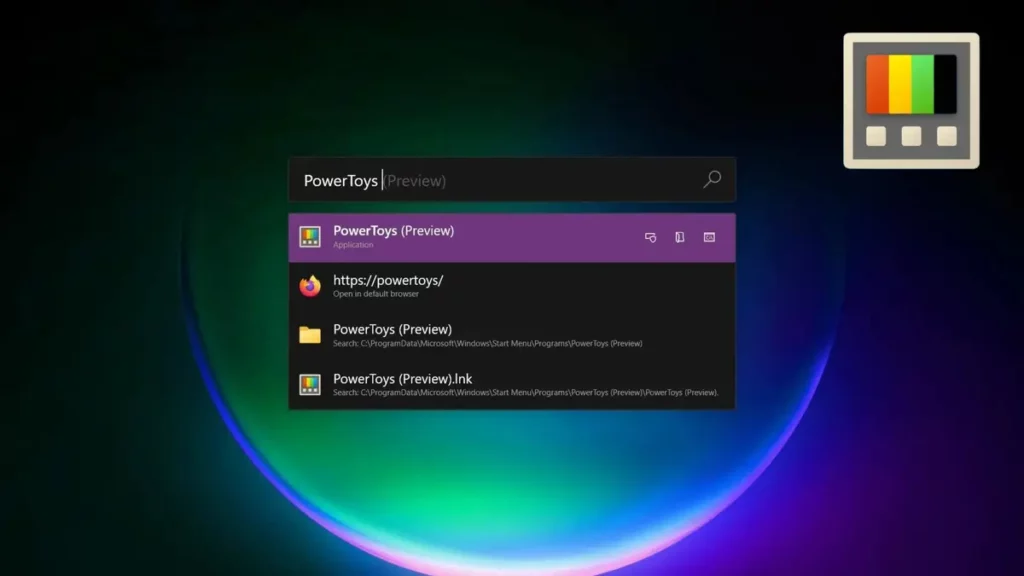
Windows 11 introduces several new features and enhancements regarding previous versions. It’s still not a perfect operating system but the users are always on the look for new performance tweaks and efficient strategies. There’s even a Windows 11 free tool you can download from the Microsoft Store to introduce special features.
The Windows 11 free tool was designed to customize the operating system and introduce special features. It makes use of the resources provided by Microsoft and you can fully customize the user experience in just a few clicks. In this article we explore Microsoft PowerToys and how to make the most out of it.

PowerToys a Windows 11 free tool for special features
Microsoft PowerToys is an open source, free official suite that adds a great variety of advanced tools for Windows 11. You can improve the user experience substantially by controlling different aspects of the operating system. Through PowerTools you can find classical features from the first Windows versions adapted to Windows 10 and 11. Just download the Windows 11 free tool and start experimenting with the special features for a customized experience.
Download PowerToys from the Microsoft Store and access a panel full of special features that you only could enable with third party apps in the past. It’s an all in one customization experience for those who love to experience a unique operating system. Besides the main advantages of Microsoft, PowerToys also bets on an all inclusive tool. They update PowerTool continuously to add new advanced features for the users.
What is PowerToys?
Microsoft Windows 11 free tool PowerToys gives you access to special features for the operating system interface. It’s a utility suite to enhance Windows 10 and Windows 11 capabilities. Each tool you can find covers a very precise need, most of the time one that the normal settings couldn’t cope with.
Sometimes it’s a small detail but there are also settings that alter the full concept of the operating system. Using PowerTools you can add powerful and deep features with no complications, integrating them fully to the Windows environment. You just need to download Microsoft PowerToys from the official web link.
Highlight features of PowerToys
From the moment you install PowerToys, you will find different panels with various effects on the operating system interface. There are 5 slide tabs from where you can choose the feature to enable.
- System tools.
- Windows and design.
- Input and output.
- File management.
- Advanced.
By default, PowerToys opens in a menu called Panel. You can find a set of shortcuts for the most popular features from the different tabs. There is Color Picker, Keyboard management, Advanced paste and other advanced features to control your operating system better. However, there are so many functions that you can spend hours learning about all of them. Here we will only explore the ones that enhance your PC performance by granting utility and speed.
In detail
- Advanced Paste. You can paste text from your clipboard in different formats and using automatic clean. It’s an AI powered feature.
- Always on Top. Put any window in the foreground to control and see it all the time. Even when you are navigating through other windows or programs.
- Work fields. This tool opens a set of apps in a certain order to enhance productivity. You can customize which apps and manage them using the Work fields editor.
- Awake. This feature avoids your computer to enter suspension mode but without changing the power configuration permanently. It’s a good tool for long downloads.
- FancyZones. The best solution for those who work with several windows opened at once. You can manage, organize and distribute the desktop in different customized zones. For example, you can use three vertical zones for telework, main documents and other apps like Slack. It all depends on your likes and needs.
- File Locker. A feature to unlock files that you have previously blocked.
- PowerRename. A Windows 11 free tool special feature to rename massive files at once.
- Commands palette. Customize the access to several system features using the keyboard shortcut Windows + Alt + Spacebar. It also includes its own search box.
- Keyboard manager. Map your own keyboard and create the shortcuts you need depending on your work style.
These are only a set of examples of the multiple options that PowerToys provides. It’s a very easy to use app that you can fully explore to enhance your productivity and user experience in Windows 11.
Does Windows 11 free tool PowerToys consume too much resources?
One of the most common worries about using PowerToys for operating system customization is the resource consumption of the app. The CPU and RAM performance is optimized to use in Windows 10 and 11 but you will experience some modifications.
Low impact features like PowerRename or Always on Top consume very low resources actively. But FancyZones or Keyboard management require active processes in the background and will moderately affect your PC.
If you have a modest PC with less than 8 GB of RAM, you should better apply those modules you use daily and disable the rest of them. That way you can still enjoy PowerToys advanced features but without resenting your device performance.