
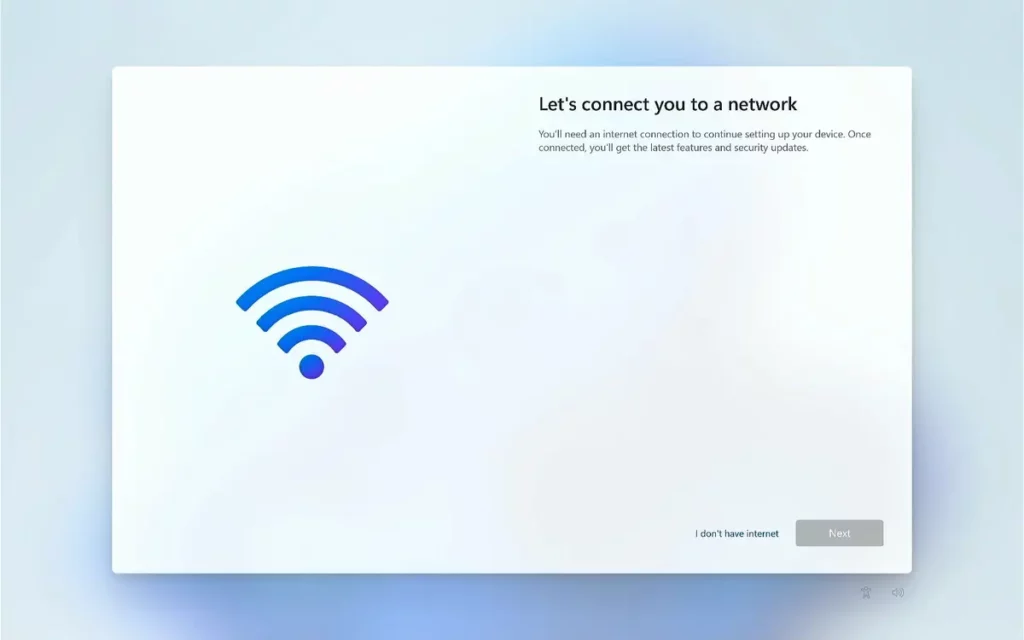
Windows 11 is the latest Microsoft’s operating system and it’s full of new features. It is designed to replace Windows 10 and it offers more than just a refrese user interface. There are certain limitations like new minimum requirements as the chip TPM 2.0 or the need of Internet connection to complete the installation-. However, it’s possible to install Windows 11 without Internet, it’s not that easy, but you can do it.
Windows Pro and Home version can be fully installed without Internet connection, and you can also skip the TPM 2.0 requirement. In order to learn how to do so, read this article to skip Internet requirements on the Windows 11 Home installation.
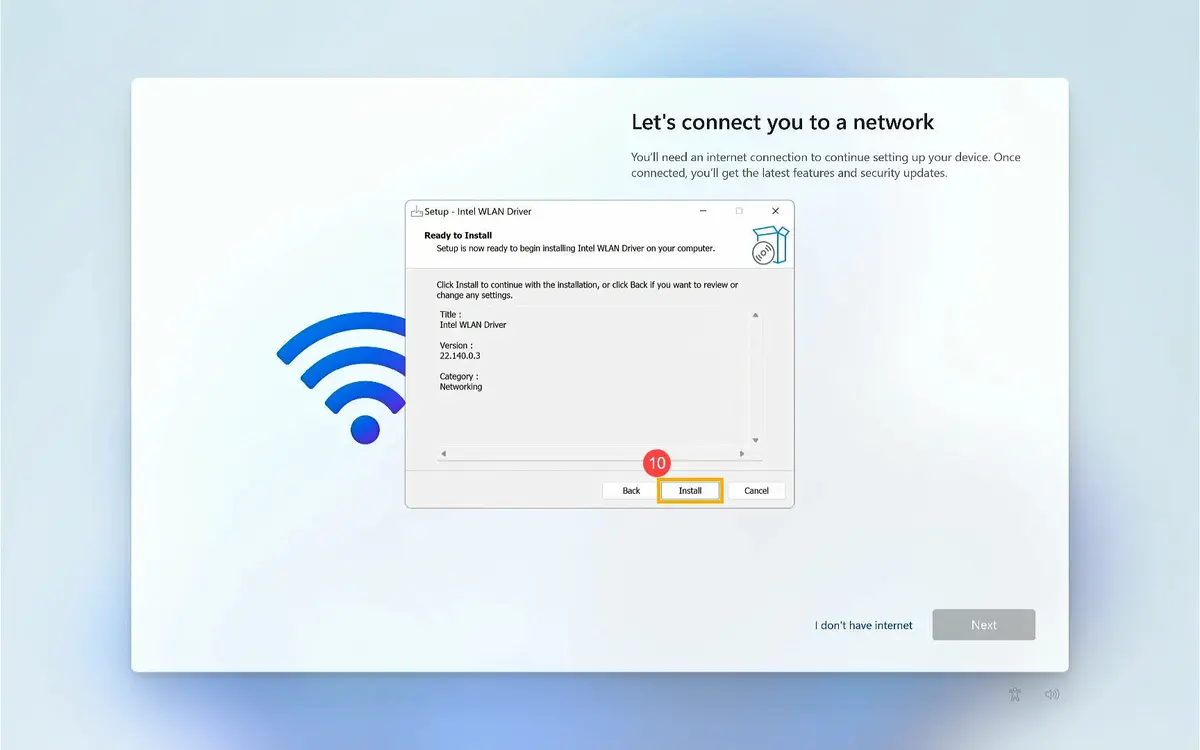
Learn how to install Windows 11 without Internet connection
Just like the installation of the most recent versions of Windows, installing the operating system is quite easy. You only need to download Windows 11 from the official website and use the ISO. Save it into an USB memory and start the setup process.
The first step is copying the data. Then the second part of the installation asks you to set up essential aspects of the operating system experience. Select the language, the keyboard distribution and you reach a screen where you have to select an Internet connection. In the new screen the option to install Windows 11 without Internet is not present. The quickest solution is to connect via Ethernet or WiFi and use your Internet connection, but maybe you don’t have it. It’s still possible so don’t worry.
The Windows 11 Home version has Internet as a requirement for installation, but you can skip it. Other versions of the Microsoft operating system don’t ask you to connect to Internet to continue installing Windows. You can even skip the Microsoft Account requirement and continue with a local account, offline or without Internet connection. However, you can skip this step through different ways in order to install Windows 11 without Internet in just a few minutes.
Visit aka ms/networksetup
In case you are experiencing a problem with your Internet connection, the installation wizard will recommend a link to try and solve the problem. It’s aka.ms/networksetup. This link helps you to set up the Internet connection in order to continue with the installation process.
The link shows different recommendations like restarting the router and make sure you have the Flight Mode disabled on your PC and the signral reaches just fine. The best solution when Internet is not working is trying an Ethernet cable connection to discard any signal or router issue.
Close the network connection flow
The first trick to install Windows 11 withouth Internet is forcing the connection process with the Task Manager. Open a CMD window using the Shift + F10 key and input the command “taskmgr” when you reach the “Connect to a network” screen on Windows.
The Task Manager shows all the Windows processes and the apps running. Look for Network connection flow input and right click on it to select “Finish task”. Go back to the installation wizard and create your offline account to start the Windows 11 installation without Internet. When you disable the network connection flow, the Internet signal doesn’t reach the PC and you can continue the installation process locally.
After installing Windows 11 you should enable the network connection flow because you will experiment some minor graphical problems. For example, you may see some icons incorrectly. The reason behind this is that Windows 11 doesn’t include all the icons with the standard installation. Many of them are automatically downloaded when you navigate the Internet. At the end of the day, if some apps or features don’t work correctly, you may only fix them by connecting to the Internet. If you have Windows 11 24H2 or latter you won’t be able to use this method because the Network connection flow doesn’t exist as task anymore.
Finish Internet service to install Windows 11 without Internet
Another quick way to continue installing Windows 11 without Internet is forcing the process but not from the Task Manager. Once you are in the Connect to a network screen press the keyboard shortcut Alt + F4 to shut it down by force. The window should close for you to continue installing Windows locally without connection.
This is a very simple method and Microsoft may block it in the future. However, you should try it in case you need it even if you have an updated version of Windows 11 installer.
Oobe bypassnro
This third alternative allows you to disable the Internet requirement. Install Windows 11 and when you reach the Connect to a network screen press Shift + F10 to open the CMD console. Introduce the following command:
oobe/bypassnro
Your PC should restart immediately and you must configure the system again. However, then you reach the Connect to a network screen you will see a new option: I don’t have Internet. Click on it and you will be able to continue installing Windows 11 without Internet or a Microsoft Account.
Install Windows 11 without Microsoft Account
Another possibility is continuing the Windows 11 installation with Internet but without a Microsoft Account. That’s also possible. The problem is that when your installation wizard detects an Internet connection, you won’t be able to remove it.
In Windows 11 Pro and Windows 10, you had the option to skip this step and create a Microsoft Account without Internet. But Windows 11 Home edition is a little bit complex. If you have Internet connection, once you reach the Microsoft Account screen you need to select Log in with Security key. In the new configuration screen, press the Return button and disconnect Internet by shutting of the WiFi or unplugging the cable. Click on Log in with Security key again and you will be able to create a Microsoft Account locally.
Introduce your user name and password for the PC and follow the installation wizard steps. The only negative aspect is that Microsoft updates and makes it harder for non Internet users. The Windows 11 24H2 restrictions are harder to avoid when you want to install with no Microsoft Account.
You can try using a Rufus Installation USB to skip Internet and Microsoft Account requirements. This is the easiest way to run a Windows 11 installation without Internet. The method allows to make the changes directly on the installer.
If you don’t want to use Rufus and prefer a legal Windows 11 installation, you should download the files from Microsoft website, save it on a USB and follow the installation wizard.
Use bypassnro to install Windows 11 without an account
First connect your PC to the Internet and enable the Flight Mode when you have to log in. Open the CMD and introduce the regedit command. From here you have to set the bypass by opening this directory:
- HKEY_LOCAL_MACHINE/SOFTWARE/Microsoft/Windows/CurrentVersion/OOBE
- Right click on the right panel and select BYPASSNRO value.
- Check the DWORD (32 bits) value and make sure it’s 1.
- Restart your PC and you should be able to bypass the log in screen.
Use CMD command and create a local Windows 11 account
There’s also a magic CMD command that allows the creation of a Windows local account. This method doesn’t eliminate the Internet requirement but you can complete the installation without logging in.
Start the installation normally and open the CMD console in the language selection screen. The keyboard shortcut is Caps + F10. Execute the following command in the MS-DOS window:
start ms-cxh:localonly
A new interface very similar to Windows 10 appears and you can introduce a local user and password. You won’t need to restart the PC. Just finish the installation and you can use Windows 11 locally without a Microsoft Account.
If you have Internet, there were two alternatives that don’t work anymore in recent Windows 11 installers. You could select no@thankyou.com or a@a.com as e-mail account and register. However, it’s not available anymore as Microsoft blocked the use of these false mails.
From the 24H2 update onwards these false e-mails have become useless. The message from Microsoft in case you try using these mails is a blocked password. If you can bypass the log in screen you can use these tricks but it’s almost impossible now.
Create a customized ISO
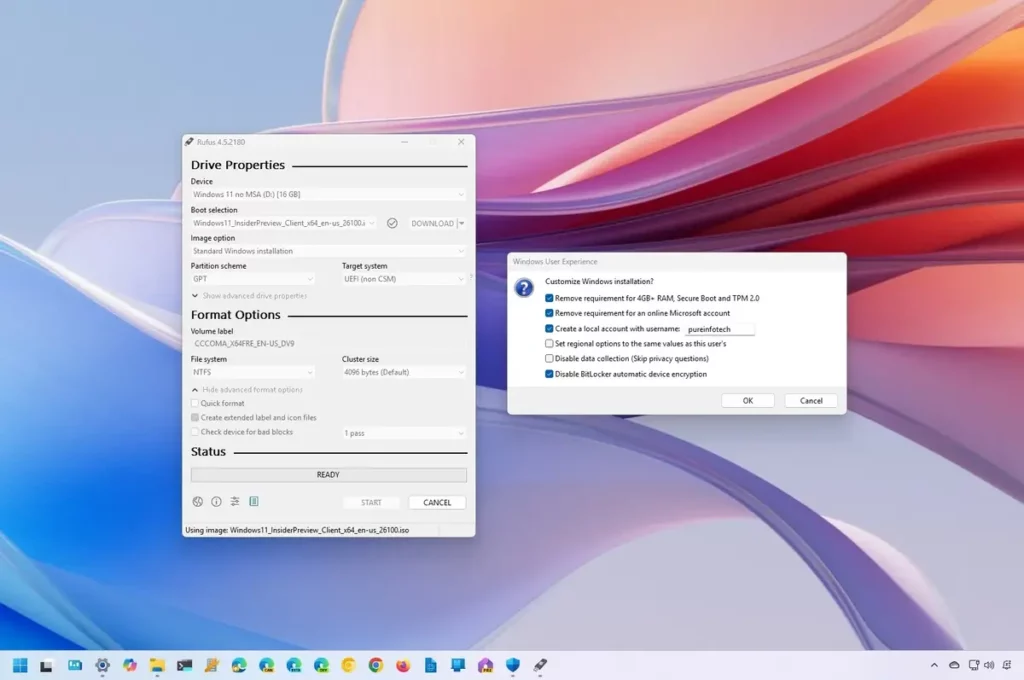
The previous methods to install Windows 11 without Internet were focused on official versions and ISOs from Microsoft. However, there’s also the possibility of creating your own ISO installer for Windows 11. In this case, you can use Rufus app to create a customized installation tool. It works with Windows as well as other operating systems.
Rufus is a ISO recorder. Instead of creating a CD or DVD, you generate a bootable USB pendrive. You can also customize the format, version and some features of each operating system.
When you select a Windows 11 version, you can also modify your user experience. In the settings window you can eliminate some requirements and features depending on the type of installation you are looking for.
You can disable the 4 GB RAM requirement or the TPM 2.0, as well as the Microsoft Account. It’s also possible to automate certain tasks like the user account creation. The regional values, data recompilation or BitLocker are also available for customization in Rufus.
All these changes can be directly set on the installer. Essential files of the system are not changed. Because of this, you won’t experience any error or problem in the long run. Once you already have a installation media ready, you must restart the PC with the USB connected. Windows 11 will restart and ask you to install using a local account with your name and password. Rufus is a free app that you can download from the official website.
Why does Windows 11 require Internet?
A very common question is why does Microsoft ask for Internet when installing your Windows? The answer is simple. First, Microsoft uses Internet to download software and certain apps for you to use them instantly after the operating system is running. If you don’t have Internet connection, you will lack certain apps that don’t come installed by default.
The Windows 11 Home Version also asks for Internet to create a Microsoft Account for your operating system. Then you have access to Outlook e-mail features as well as OneDrive and Office online
Finally, Windows also uses the Internet connection to search and download the latest updates for Windows. In case you install Windows 11 without Internet, you will only have the base version of the operating system.
Connecting Internet after installing Windows
When you install Windows 11 without Internet and then connect it, the system will behave differently. Some changes enhance the user experience but some others may generate performance issues.
- System activation. Windows will try to validate your license immediately. If you haven’t used a valid key you will see a message asking for it.
- Automatic updates. Windows Updates searches and installs all official Windows 11 updates. This includes any security patch, drivers or new feature. These updates may enhance the experience or cause problems with offline settings you may have designed.
- Drivers download. Windows will automatically search any new drivers to make the most out of your hardware. Graphic card, network card and peripherals are among the first devices to be updated for a better performance.
- Cloud synchronization. If you add a Microsoft account the system will synch it with your OneDrive and Microsoft Store apps.
- Privacy changes and telemetry. When using Internet, Windows sends data about our operating system to Microsoft. This may affect your privacy if you don’t configure it properly. Go to Privacy and security in the Settings menu or use the Win + I keyboard shortcut.
To sum up, if you decide to connect Windows 11 to the Internet after installation you may experience a security and compatibility improvement but there’s also a possibility for issues and privacy leaks.
Advantages of installing Windows 11 without Internet
Installing Windows 11 using one of the tricks above to skip Internet connection has several advantages. It can create a more clear, private and controlled experience from the start. You won’t need to use a mandatory Microsoft Account or cloud service. All your personal data will be out of synch with Internet services. It’s a good way to protect your personal information and avoid security and privacy leaks.
You can also control which files you introduce to your system. Automatic updates from Windows may end up installing files you don’t know about or bloatware. If you install Windows 11 connected to the Internet, you will download games and apps that you may never use.
Windows also updates automatically all kinds of drivers and services and most of them you will never use. If you don’t connect to the Internet you will experience a cleaner and free of issues installation.
Finally, if you use Windows 11 in a company or school, the offline method allows for a better customization as well as fast and secure. Create your own environment for work and teaching with Microsoft operating system.
Main doubts about installing Windows 11 without Internet
Windows operating system evolved. Nowadays is not that usual to have PCs or devices without Internet connection. That means that installation processes have also changed. Maybe you are thinking why does Microsoft wants an Internet connection to install Windows 11 Home.
The short answer is that Microsoft downloads critical updates as well as drivers and other preinstalled apps during the initial setup. It’s also a way to invite you to use OneDrive cloud service from start.
The methods in this article are also available to install Windows 11 Pro without Internet. The Pro version also includes a native alternative to fully install Windows locally
Is Rufus a safe way to create a customize USB installation device?
Yes. Rufus is a reliable app to create installation devices. You just have to make sure to download it from the official website. With Rufus you can manually modify the ISO of Windows 11 without altering critical files.
Remember that after locally installing Windows 11 you may experience some automatic updates and issues if you connect to Internet. This is because of the new files for your device.
Do you have any questions or problems related to the topic of the article? We want to help you.
Leave a comment with your problem or question. We read and respond to all comments, although sometimes it may take a while due to the volume we receive. Additionally, if your question inspires the writing of an article, we will notify you by email when we publish it.
*We moderate comments to avoid spam.
Thank you for enrich our community with your participation!