
There’s a very common mistake named code 29 or code 44 that stops Microsoft 365 update. In this article you will learn how to fix it for your Windows 11/11 PC. The error “Couldn’t update license” is a commonly reported issue and it’s linked to multiple error codes. Either of these errors impede Microsoft 365 to refresh or validate the subscription license on your device.
The result is Office apps becoming unavailable for use. The system doesn’t recognize the user as entitled to the subscription. Here you will learn how to fix the Microsoft 365 update error with code 29 or 44 easily.
Error message for Microsoft 365 update
The complete error message with a code 29 or 44 reads:
Couldn’t update license.
You can continue using Microsoft 365 and try again. If issues persist, please contact Microsoft support.
- Error code 29
- Couldn’t update licence.
- Error Code: 44
In case you experiment any of these error codes, you can try the following solutions to fix it and restart your service.
Causes for a Microsoft 365 update error
The infamously popular Error code 29 usually originates in problems with local licensing data or sign-in state. It can happen because of corrupted or outdated Microsoft 365 license cache or Office being signed out automatically in the background. It may also happen when switching between multiple Microsoft accounts on the same device. Office won’t be able to validate your stored license token and even though the subscription remains active, you see the error code message.
The Microsoft 365 update error code 44 is caused by account-license mismatch. If you sign your Office suite with a Microsoft account that doesn’t own the subscription or the license has been removed, reassigned or changed by an administrator. In these cases, Office can communicate with Microsoft servers but without associating the signed-in account with a valid license.
Fix Microsoft 365 update error 29 or 44
There are different methods to try and fix Microsoft 365 license update errors 29 and 44 in your Windows 11/10 PC. The complete list includes the following:
- Sign out and sign in with the correct Microsoft account.
- Clear Microsoft 365 license cache.
- Repair Microsoft 365.
- Check date and time settings.
- Update your Windows and Microsoft 365.
- Reset Microsoft 365 activation state.
- Sign out and sign in with the correct Microsoft account
In case your Office is signed with a wrong account, sign out to remove cached credentials. Then it forces your Office to re-validate the license when signing back in.
- Open any of Microsoft 365 apps.
- Click on File in the top-left corner and select Account in the left panel.
- Under User information click on Sign out.
- Close all your Microsoft 365 apps.
- Reopen any Office app and click Sign in.
- Introduce your Microsoft account data and Microsoft 365 subscription.
Home users should use the Microsoft account with active Microsoft 365 Personal or Family subscription.
Business users have to sign in with the work or school account assigned to Microsoft 365 Business or Enterprise license (Basic, Standard, Premium, E3, E5, F1 or F3).
Once you have signed in, restart the app and check if the error message disappears.
Clear Microsoft 365 license update cache
Usually, Microsoft 365 stores local licensing and activation data in a cache on your device. If the data becomes corrupted or outdated, Office may fail to refresh the subscription license and give you the error 29 or 44 screen. You can fix the problem by clearing the license cache and forcing Microsoft 365 to recreate the information.
- Close all Microsoft 365 apps.
- Press Win + R, type
%localappdata%, and press Enter. - When the Fire Explorer window opens go to Microsoft – Office – 16.0
- On older systems you may see 14.0 or 15.0 instead.
- Open the OfficeFileCache folder and select all files inside it.
- Delete them.
- Restart your PC.
- Open any Microsoft 365 app and sign in.
Repair Microsoft 365 installation
In case you have a damaged Office installation, the Microsoft 365 performance may fail. If you repair the installation it’s possible that you can fix the Error 44 or 29 easily. The main goal is to reset Office components that handle sign-in and licensing issues.
- Press Win + I and open the Settings app.
- Select Apps – Installed apps and locate Microsoft 365 in the list.
- Press the three-dot menu next to it and select Modify.
- Press Quick Repair and then Repair.
- If the problem persists, repeat the steps and select Online Repair. Remember to Restart your PC after the fixes finish.
Check date and time settings
As Microsoft 365 relies on correct system date and time for security certificates validation, it has to be correctly updated. If your PC’s clock is incorrect, Office may fail on the refreshing of the license and display one of the “Couldn’t update license” error messages.
- Open the Settings menu and go to Time & language.
- Select Date & Time and turn on the Set time automatically option.
- Turn on Set time zone automatically and then Sync now under Additional settings.
- Restart your PC and check if the error appears again.
Update Windows and Microsoft 365
The updates for Windows and Microsoft 365 are regular and they tend to help improve security for activation, sign-in and licensing issues. Installing the latest update package helps to resolve almost all license validation issues in Microsoft 365. The update process is very simple.
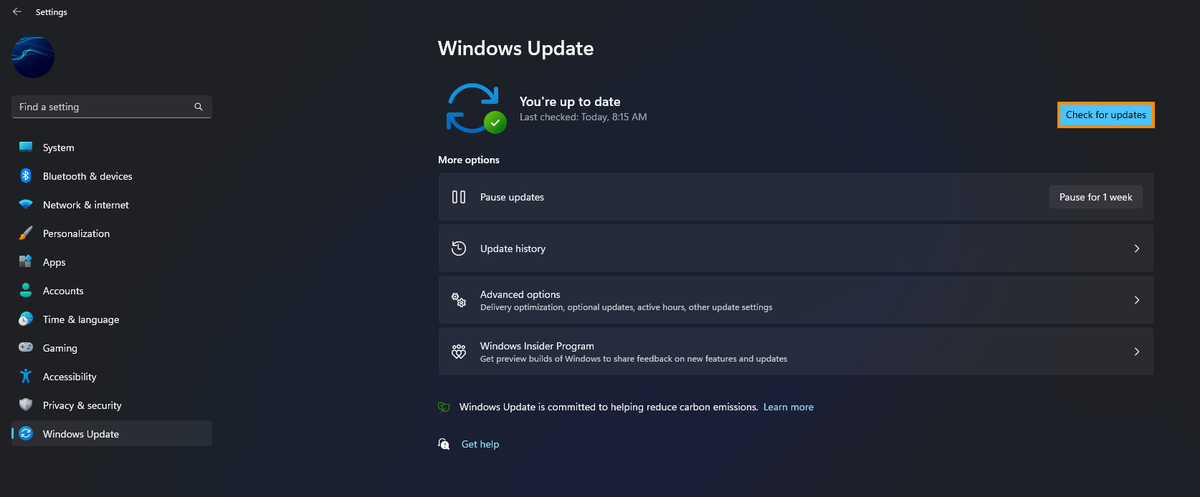
- Open Settings and go to Windows Update.
- Click on Check for updates and install all the available updates.
- In order to update Microsoft 365 open any Microsoft 365 app.
- Click on File – Account.
- Under Product Information click on the Update Options button.
- Select Update Now and allow Office to install the Update packages.
- Restart your PC.
After the updating open Microsoft 365 and check if the error message appears again.
Reset Microsoft 365 activation state
In case none of the previous solutions work, you can directly restart Microsoft 365 activation state. This removes existing activation data and cached account information to allow Microsoft 365 to activate again.
There are two different methods to restart the Microsoft 365 activation state.
- Method 1: Run the Microsoft 365 Activation troubleshooter, it’s an easier and safer option for most users.
- Method 2: Use scripts to run Microsoft 365 Activation. It’s a method for advanced users or IT administrators. It requires running Microsoft-provided scripts that completely remove the existing licenses and cached account data to start from zero.
- Step by step, Run the Microsoft 365 Activation troubleshooter
- Press Win + S and search the Get Help option.
- Open Get Help app.
- Type Activate Microsoft Office in the search box.
- Microsoft 365 Activation troubleshooter will appear and you need to press Yes to run the software.
- Follow the instructions and complete the reset process.
- Restart your PC and open any Microsoft 365 app to see if the license error appears.
Method 2: Reset activation state with Microsoft scripts
This second option is for advanced users. In case the troubleshooter doesn’t resolve the issue, Microsoft provide official scripts to fully remove any previous license, cached Office account information and work or school sign-in data.
Scripts:
- OLicenseCleanup.vbs: Removes existing Office licenses and cached account data
- signoutofwamaccounts.ps1: Clears Work or School (WAM) accounts linked to Office
- WPJCleanUp.cmd: Removes Workplace Joined accounts (only required if the device is Workplace joined)
The steps below apply for Microsoft 365 Apps for enterprise on Windows. On Microsoft Project and Vision activation there is also reset by this process and you will be signed out of all Office apps. In order to automate the cleanup process follow these steps:
- Close all Microsoft 365 apps.
- Download OLicenseCleanup.zip from Microsoft’s official documentation.
- Extract the ZIP file and run OLicenseCleanup.vbs as administrator.
- Download signoutofwamaccounts.zip and place the script in the same folder as OLicenseCleanup.vbs.
- Run the script using elevated permissions to clear all WAM account data.
- If the device is workplace joined, download WPJCleanUp.zip and run WPJCleanUp.cmd.
- Restart your PC.
- Open Microsoft 365 app and sign in again to activate it.
Why doesn’t Microsoft 365 correctly update?
Problems with Microsoft 365 update license
It’s possible that your Microsoft 365 license won’t update if the Office is signed with a wrong account or the local license cache is corrupted. Also the date and time settings may be bothering the correct sign in data. If you have subscribed to Copilot Pro, try signin in to Microsoft 365 app using that account subscription.
How to update the Microsoft 365 license?
Microsoft 365 automatically refreshes the license in the background when you sign in with a correct account and connected to the Internet. In case the automatic refresh fails, try signing out and sign back in to force the license update.
Do you have any questions or problems related to the topic of the article? We want to help you.
Leave a comment with your problem or question. We read and respond to all comments, although sometimes it may take a while due to the volume we receive. Additionally, if your question inspires the writing of an article, we will notify you by email when we publish it.
*We moderate comments to avoid spam.
Thank you for enrich our community with your participation!