
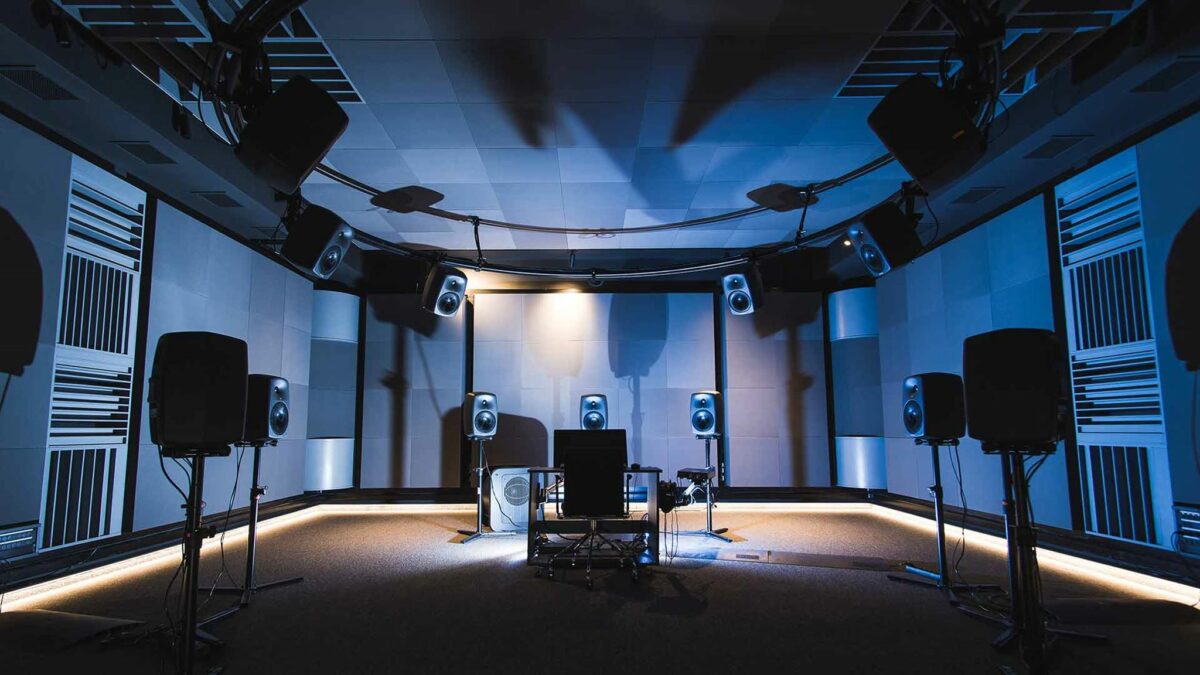
In professional videogaming, spatial audio is an excellent tool to defeat your enemies. Thanks to spatial audio you can identify where the sound comes from in a 360 degrees environment.
This article explains how to set and make use of spatial audio for your professional videogame matches. Step by step, learn how to set your surrounding sound technology and the different sources and tips to make the most out of it.

Advantages of spatial audio in competitive games
In multiplayer videogames, your brain processes hearing information faster than visual. Learning how to use spatial audio you can improve your perception of sounds in the surrounding.
- Vertical positioning. Thanks to sound, a videogame can tell you if the enemy is to the right or to the left. Spatial audio uses transference functions related to your head in order to simulate sound wave rebounds in your ears. That way you can locate your enemy above or below our position.
- Current activity. Spatial audio also allows you to identify what the enemy is doing. Maybe they are recharging a weapon or healing themselves, moving or preparing a grenade.
- Cognitive charge. You don’t need to guess the location of your enemy, and then you can focus your attention in accuracy and precision to eliminate them.
Windows Sonic, Dolby Atmos and DTS: X
Those three are the most popular technologies for surrounding and spatial sound settings. Each one of these technologies include different ways to help you maximize the hearing capabilities in competitive videogames.
- Windows Sonic. It’s the best option for users who don’t want to invest more money in videogames sound. It offers neutral and clear sound as well as good surrounding sound. It’s a little basic in terms of upward sound simulation and customization options.
- Dolby Atmos. It offers refined and balanced quality sound. It offers great above source quality and there’s great precision in surrounding audio elements. It also includes customization options for professional users.
- DTS: X. This is the most complete spatial sound solution. Every dialogue goes to the background and it gives priority to sounds and effects to identify where and what is the enemy doing. Customization options allow to choose between different profiles and even choosing headphone models.
How to set up spatial sound in Windows
If you don’t want to spend additional money to get spatial audio features, the best option is Windows Sonic. Dolby Atmos and DTS:X require paid apps that you can download through the Microsoft Store and free trial periods of 7 days each. In order to set Windows Sonic, you need to follow these steps:
- Open the speaker icon in your system and select Enable special sound. If there’s no option, press Audio settings.
- Go to Output and select the Proprieties menu.
- Open the Special sound section and press on the slide box with the Disabled option and select Windows Sonic from the list.
Once you have done this, you can start enjoying Windows special sound technology for free. If you are not satisfied with the quality, you can also try Dolby Atmos or DTS: X options.
Do you have any questions or problems related to the topic of the article? We want to help you.
Leave a comment with your problem or question. We read and respond to all comments, although sometimes it may take a while due to the volume we receive. Additionally, if your question inspires the writing of an article, we will notify you by email when we publish it.
*We moderate comments to avoid spam.
Thank you for enrich our community with your participation!